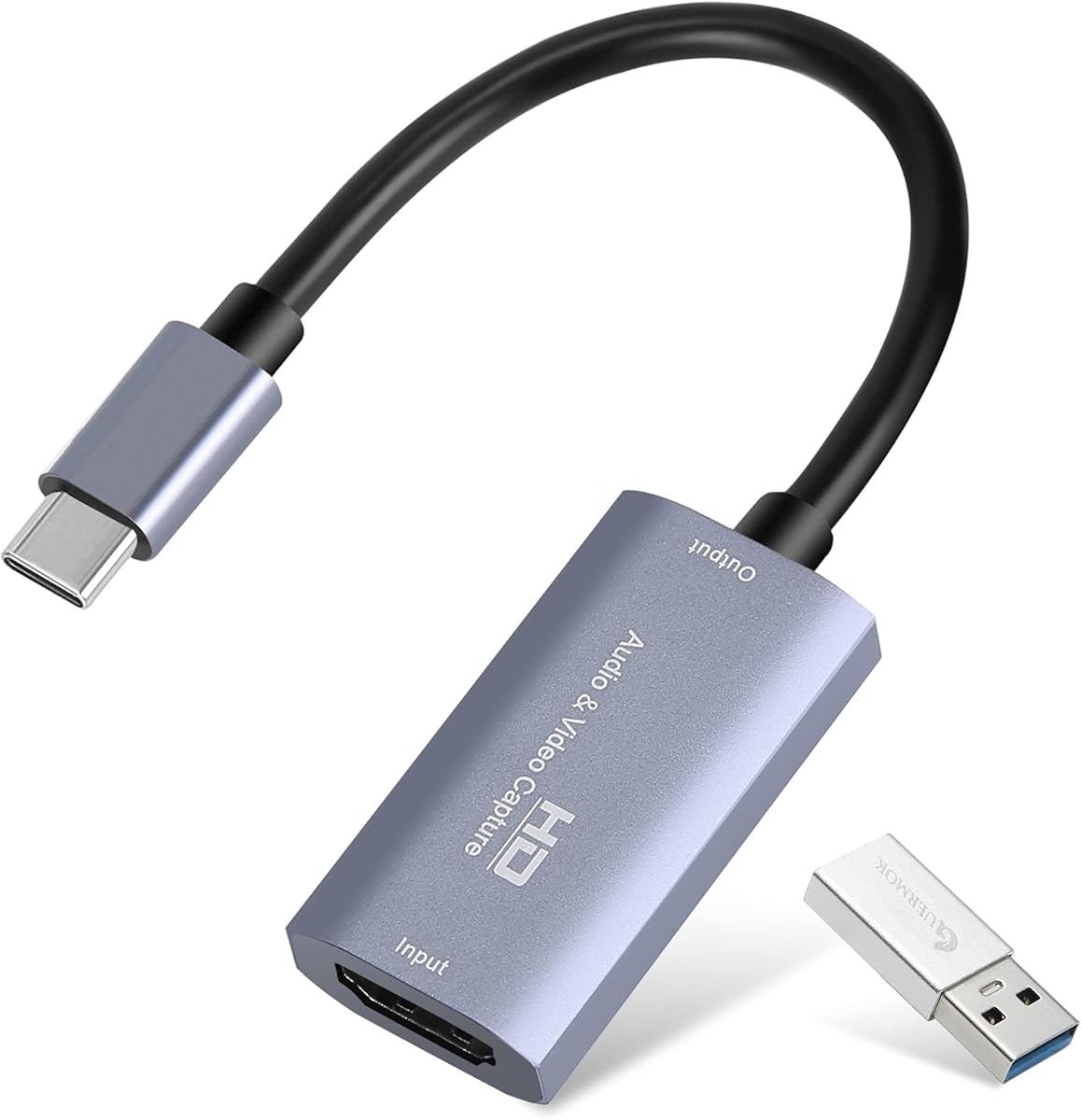
Guermok Video Capture Card
4.4Editor score
USB 3.0 connectivity
Plug and play setup
Compatible with major OS
Finding the right HDMI recorder helps you capture high quality video from consoles and cameras. These devices let you save gameplay or conferences without needing a powerful computer nearby. They are essential for creators who want reliable recording tools.
We reviewed ten popular models based on resolution support and ease of use. Our comparison looks at standalone features and PC dependent options to help you decide. Each product offers unique benefits for different recording scenarios.
Every pick shows key specs and real world performance details you can trust. Note that prices and stock levels change frequently so check current availability. We aim to help you choose the device that fits your specific needs.
4.4Editor score
4.0Editor score

4.1Editor score
As an Amazon Associate we earn from qualifying purchases.
The following table provides a side by side look at all ten products we reviewed. It highlights key specifications like resolution support and input types to help you compare features quickly.



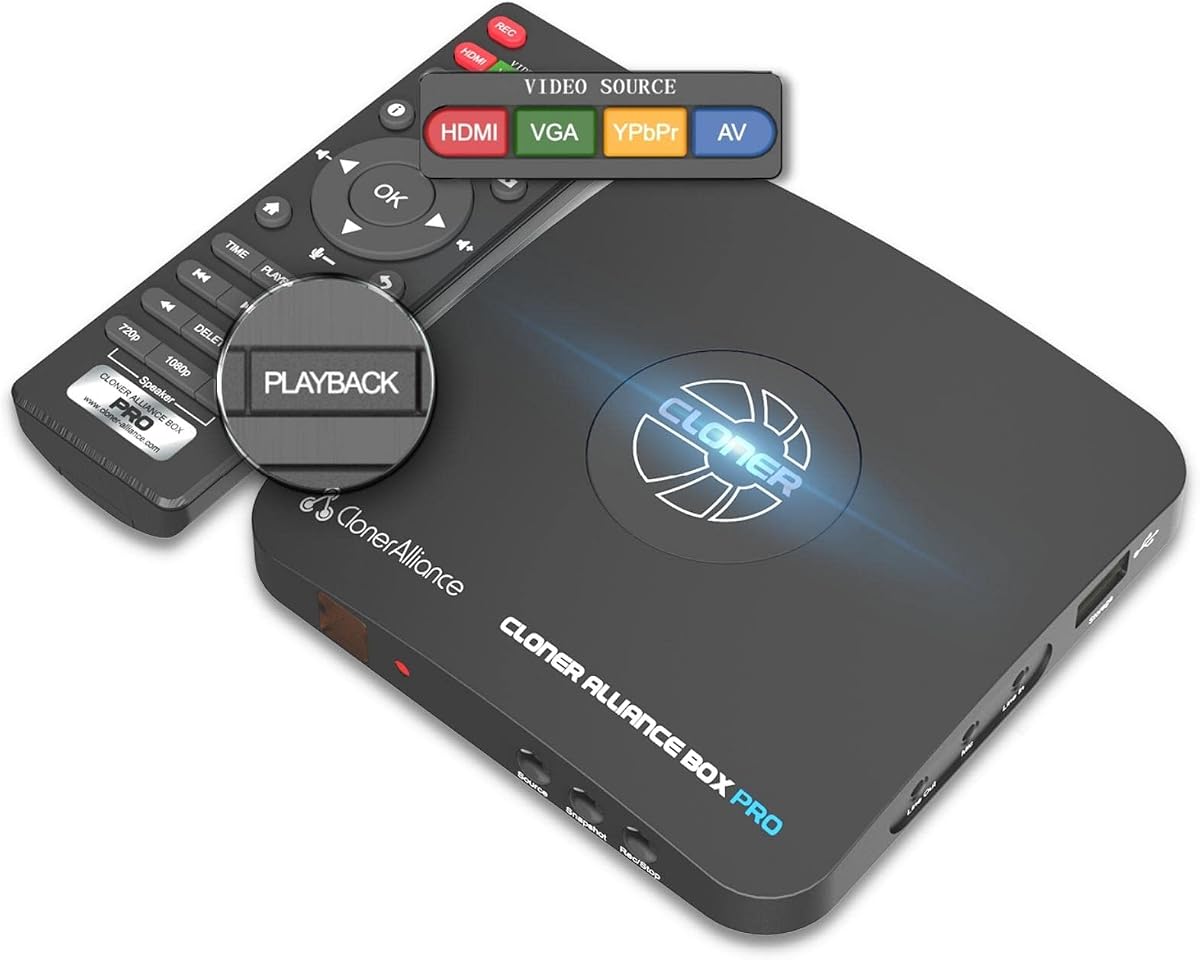
The ClonerAlliance Box Pro stands out as a versatile standalone recorder that handles HDMI and analog inputs without a computer. It captures video at 1080p and saves directly to USB storage. Users appreciate its ability to playback recorded files on a TV using the included remote.
We may earn a commission when you buy through this link, at no additional cost to you.
This device is ideal for archiving old VHS tapes or capturing gameplay from consoles. It supports a wide range of inputs including RCA VGA and YPbPr. The low latency ensures you can monitor the feed while recording. Schedule recording tasks let you capture specific times automatically.
One limitation is that it does not support content protected by HDCP which limits use with some modern streaming devices. The included software for editing is only available on Windows systems. However for many users these constraints are acceptable given the standalone functionality.
Buyers who need a reliable way to digitize old media or record gameplay without a PC will find this unit useful. It simplifies the process by removing the need for complex driver installations or software setups on a desktop.
You can connect sources directly and save to USB without any computer involvement making setup quick and easy.
Support for VGA RCA and component inputs allows you to capture from older devices that lack modern HDMI ports.
We may earn a commission when you buy through this link, at no additional cost to you.
The Guermok Video Capture Card offers an accessible entry point for those looking to record HDMI sources with minimal cost. It delivers 1080p at 60 fps and supports 4K inputs. The device connects via USB 3.0 or USB C and works without additional drivers.
We may earn a commission when you buy through this link, at no additional cost to you.
Its aluminum housing helps dissipate heat during long sessions which is crucial for stability. Users can stream to platforms like Twitch or record locally using OBS. The low latency makes it suitable for gaming where timing matters. It also supports Mac OS and Linux systems.
While it is a great value you will need to install capture software since it does not record standalone. Audio setup may require restarting OBS to resolve sync issues. These are minor hurdles for the price but worth noting before purchase.
This card is perfect for students or hobbyists who want to start streaming without investing in expensive hardware. Its portability means you can take it to LAN parties or travel locations easily.
USB 3.0 ensures fast data transfer which allows smooth 1080p recording without dropping frames or lagging.
The device works with Windows Mac and Linux so it fits into diverse computing environments without extra steps.
We may earn a commission when you buy through this link, at no additional cost to you.
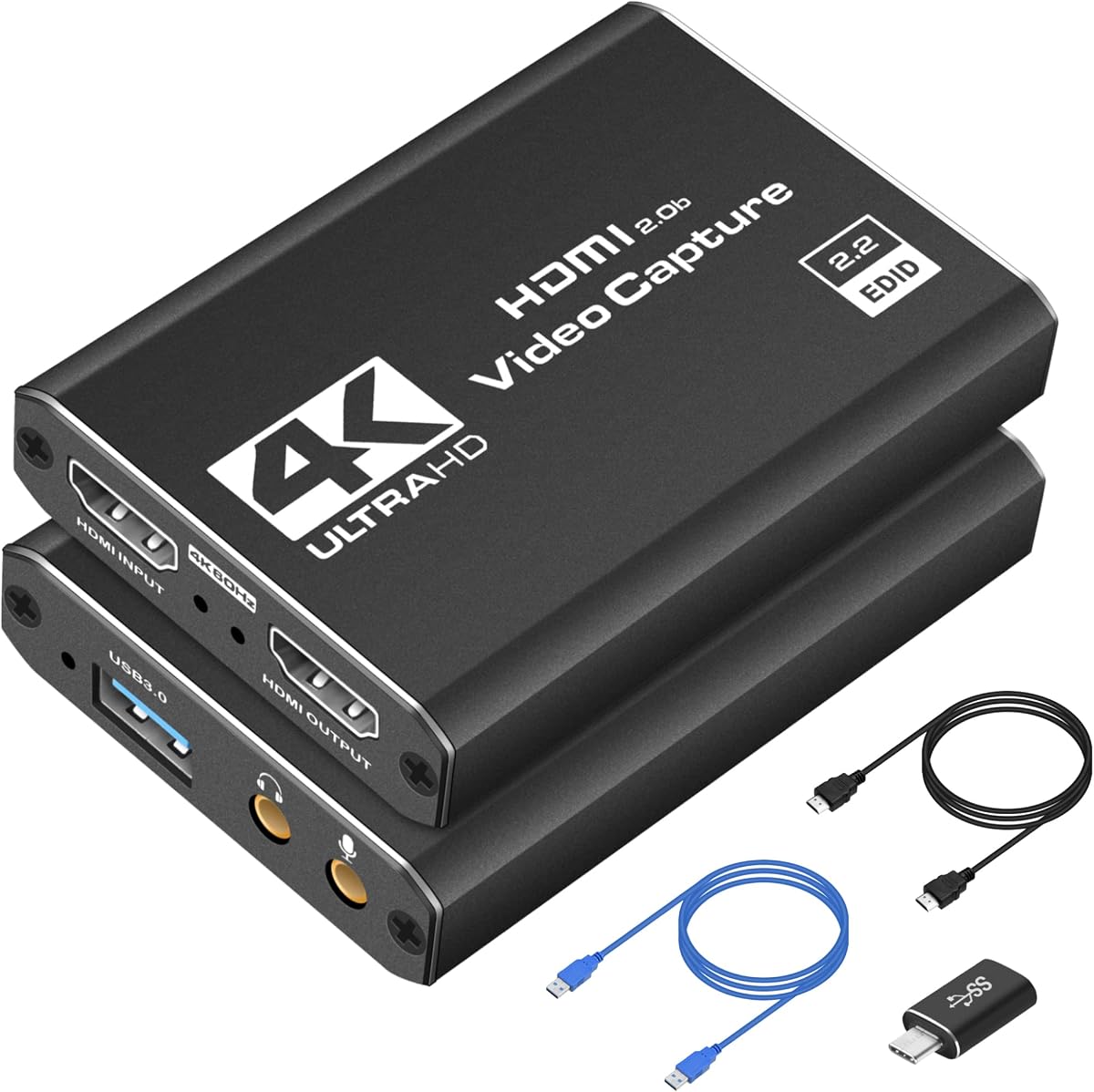
The ClonerAlliance UHD Pro brings true 4K recording to standalone HDMI recorders. It uses H.265 compression to keep file sizes manageable while maintaining quality. Users can record in cinematic 24fps or standard 30fps modes. The device passes through video to a TV while recording.
We may earn a commission when you buy through this link, at no additional cost to you.
This unit allows you to save files directly to USB storage or TF cards. The pause and resume function helps you manage recording sessions without creating separate files. It works with consoles and cameras that output 4K video. The low latency ensures smooth monitoring.
Like other ClonerAlliance models it does not work with HDCP protected sources so streaming boxes may fail. The editing software is Windows only which limits Mac users. Despite these points it remains a top choice for high resolution standalone capture.
Professionals or enthusiasts who need 4K recording without a PC will find this model compelling. It offers a premium feature set that balances quality and ease of use effectively.
H.265 codec reduces file sizes significantly while preserving the visual detail of your 4K recordings.
Support for 24fps allows you to capture footage with a cinematic look that matches film standards.
We may earn a commission when you buy through this link, at no additional cost to you.
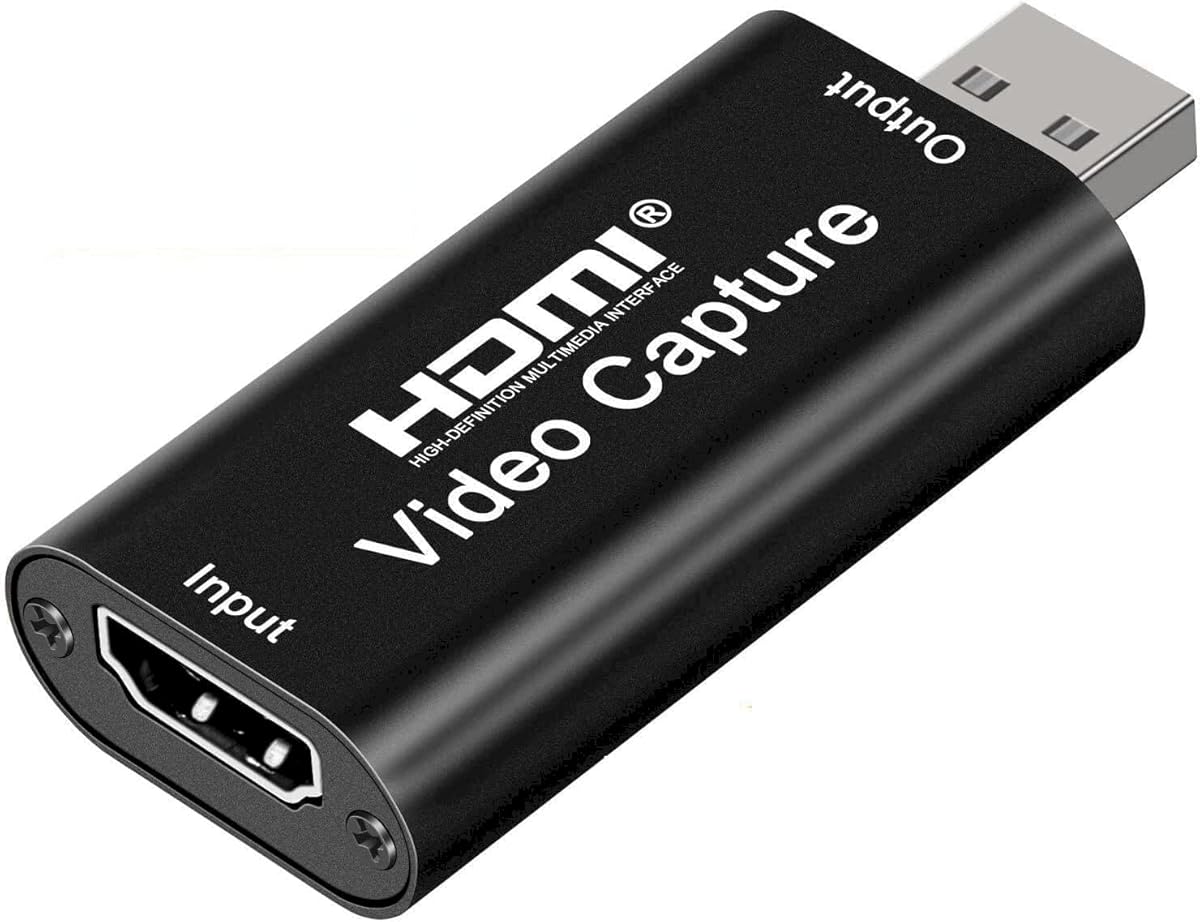
This capture card focuses on streaming readiness with features like a dedicated microphone input. It outputs 1080p at 60 fps which is ideal for most streaming platforms. The HDMI loop out lets you see the game on a monitor while streaming. It detects as a webcam automatically.
We may earn a commission when you buy through this link, at no additional cost to you.
Users can connect to Xbox or PS5 and start streaming to Twitch or YouTube quickly. The device works on Mac and Windows without extra drivers. The aluminum body helps with heat dissipation. It supports popular software like OBS and VLC for recording.
The microphone input is convenient for adding commentary but it only accepts 3.5mm TRS headsets. It does not output 4K video which limits high fidelity use cases. Still for most streamers it provides the essential tools needed for live broadcasts.
Content creators who want a simple way to add commentary during gameplay will appreciate the mic input. It reduces the need for separate audio capture hardware.
A built in mic port allows you to add voice commentary without needing an external audio mixer.
The loop out port lets you play games on your TV while sending the feed to your computer.
We may earn a commission when you buy through this link, at no additional cost to you.
The Audio Express AXHDCAP is a tiny capture card that fits easily in any bag. It accepts 4K input but outputs at 1080p due to USB 2.0 limitations. It uses anti static materials to protect the device during use. Setup is instant without drivers.
We may earn a commission when you buy through this link, at no additional cost to you.
Streamers and teachers can use it for video conferencing or live broadcasts. The low latency ensures you see what you record in real time. It supports Windows Mac and Linux systems seamlessly. The price makes it accessible for casual users.
The USB 2.0 interface means it cannot handle high bandwidth 4K recording. You must use software like OBS for capture since it does not save standalone. For simple tasks it works well but power users may need more bandwidth.
Anyone needing a portable tool for meetings or light streaming will find this unit practical. It balances cost and function for everyday tasks.
Its small size allows you to carry it anywhere making it ideal for mobile recording needs.
The device uses materials that reduce static electricity risks which protects internal components during use.
We may earn a commission when you buy through this link, at no additional cost to you.
This capture card is designed for users who want a straightforward way to record or stream. It supports 1080p at 60 fps via USB 3.0. It works with popular consoles like Switch and PS5. The design is compact and does not need external power.
We may earn a commission when you buy through this link, at no additional cost to you.
Low latency ensures that gameplay remains smooth while you record or stream. It integrates with OBS and Streamlabs quickly. The USB 3.0 connection provides sufficient bandwidth for high quality video. It is a solid choice for entry level creators.
While it lacks advanced features like audio passthrough it covers the essentials. You may need a separate audio cable for full setup. For simple needs this card provides reliable performance without complexity.
New streamers looking for a cost effective tool to start their channel will find this helpful. It removes the friction of complex hardware setups.
Compatible with Nintendo Switch Xbox and PlayStation so it fits most gaming setups.
Power comes directly from the USB port which eliminates the need for an extra adapter.
We may earn a commission when you buy through this link, at no additional cost to you.
This capture box stands out with two HDMI inputs and a built in screen. You can switch between sources or use PIP to show two feeds. The 7 inch screen lets you preview without a monitor. It saves to USB or SD cards.
We may earn a commission when you buy through this link, at no additional cost to you.
It supports battery power which is great for on the go recording. The unit connects to PC via USB for streaming. It is compatible with consoles and cameras. The design suits users who need multiple inputs without extra switches.
The higher cost reflects the dual input and screen features. It does not handle HDCP content so streaming sources may not work. For live events it offers flexibility with battery power.
Event videographers or users needing to switch sources quickly will benefit from the dual inputs. The screen adds convenience for quick checks.
Two HDMI ports let you connect two sources and switch or combine them on the fly.
A 7 inch display allows you to monitor the feed without needing an external TV.
We may earn a commission when you buy through this link, at no additional cost to you.
The ZowieREC offers a premium look with its aluminum casing. It records 4K at 30fps and includes schedule recording functions. The pause and resume feature helps manage long sessions. It works without a PC and supports TF cards.
We may earn a commission when you buy through this link, at no additional cost to you.
Users can set automatic recording times for events. The design fits well in home or office setups. It passes through video for monitoring. The storage options give flexibility for saving files.
Recording is limited to 30fps which may affect high speed content. It does not handle HDCP sources which limits streaming use. Still it is a solid standalone option for many needs.
Those who value build quality and schedule features will like this unit. It is a good choice for automated recording tasks.
Built in scheduler lets you set automatic recording times so you never miss an event.
The aluminum case provides durability and a professional look for desktop setups.
We may earn a commission when you buy through this link, at no additional cost to you.
The ViewPro combines recording with a 7 inch screen so you do not need a TV. It handles HDMI and analog inputs like VGA and RCA. Schedule recording lets you set tasks in advance. A built in speaker allows quick playback.
We may earn a commission when you buy through this link, at no additional cost to you.
It saves to USB or SD cards and supports H.264. You can use it for live streaming via software on PC. The portable design makes it easy to take anywhere. It is useful for field work or travel.
Like other ClonerAlliance devices it does not handle HDCP content. The software is Windows only. For analog capture it is rare to find such a versatile standalone unit.
Users who need a self contained recorder with a screen will appreciate this model. It simplifies setup significantly.
A 7 inch screen allows you to view and playback without connecting to an external display.
VGA RCA and YPbPr inputs let you capture from older devices easily.
We may earn a commission when you buy through this link, at no additional cost to you.
The Blackmagic UltraStudio Express is a professional grade capture device using SDI. It supports loop output for monitoring and high quality audio inputs. It integrates with DaVinci Resolve and other editing software. This unit suits post production workflows.
We may earn a commission when you buy through this link, at no additional cost to you.
Users get reliable performance for broadcast or studio work. The design is compact for a desktop. It handles multi channel audio well. It is a trusted name in professional video production.
The device needs an SDI source which is less common than HDMI. Setup may require more technical knowledge. For professionals the investment is worth the quality.
Broadcast engineers or serious editors who need studio grade capture will find this ideal. It offers reliability and performance for critical tasks.
SDI inputs provide reliable long distance signal transmission suitable for studio environments.
Direct integration with DaVinci Resolve speeds up editing and grading workflows.
We may earn a commission when you buy through this link, at no additional cost to you.
Choosing the right HDMI recorder requires evaluating several key factors to ensure it meets your recording needs. This section breaks down the most important features to consider.
Decide if you need a device that works without a computer. Standalone recorders save directly to USB or SD cards which is great for archiving. PC dependent cards rely on software but offer more editing control during capture.
If you want to record on a TV or console without extra hardware choose a standalone model. For streaming or complex setups a PC card may be better.
Look for devices that support the resolution of your source. Some recorders capture 1080p while others offer 4K. Frame rate is also important for smooth video especially for gaming content.
Ensure the device supports at least 1080p at 60 fps for high quality playback. If you have 4K sources verify the recording output matches.
Check what inputs the recorder accepts. HDMI is standard but some models also support VGA or RCA. Output features like loop through allow you to view video on a monitor while recording.
Choose a unit with the right ports for your devices. Multiple inputs can be useful if you plan to switch between sources.
Consider how files are saved and what file systems are supported. USB drives and SD cards are common options. Support for exFAT or NTFS helps with large file sizes.
Verify the device can read your storage format. Large recordings require enough space so plan accordingly.
Many HDMI recorders cannot handle HDCP protected content. This means streaming devices may not work. If you plan to record from these sources check the specs carefully.
Be aware that protected content may result in a black screen. This is a limitation of the technology not a defect.
Some devices include audio inputs for adding commentary. Others rely on the HDMI signal for sound. If you need a separate mic input look for that feature.
Check if the device supports audio pass through or mix. This affects how you can add voice to your recordings.
PC dependent cards need software to function. Ensure it works with your operating system like Windows or Mac. Look for support for tools like OBS if you stream.
For standalone units check if they include editing software. Verify compatibility with your computer if you transfer files there.
Build quality affects durability especially during transport. Aluminum housings often dissipate heat better. Portability matters if you take the device to different locations.
Consider the size and weight. Compact designs are easier to carry but may have fewer ports or features.
Start by connecting your video source to the recorder using an HDMI cable. If the unit is standalone connect a USB drive for storage. For PC cards plug into a USB 3.0 port and install any required software.
Check settings like resolution and frame rate to match your source. For standalone units use the remote or menu to start recording. For PC cards launch your capture software and verify the signal before recording.
After recording safely eject storage devices to prevent data loss. Store the device in a dry cool place to avoid overheating. Clean ports gently with compressed air if dust accumulates.
Most HDMI recorders will not work with Netflix or Amazon Prime due to HDCP protection. The device may show a black screen when connected to these services. This is a standard limitation of content protection technology.
A standard HDMI cable works for most recorders. If you use 4K sources you may need a high speed cable. Ensure the cable is rated for the resolution and frame rate you plan to capture.
USB 3.0 drives with large capacity work well for long sessions. Ensure the device supports the file system like NTFS or exFAT. Fast write speeds prevent dropped frames during capture.
A blue screen often means the device is not detected properly. Try restarting the software or replugging the USB cable. Ensure you are using a USB 3.0 port for bandwidth.
Only recorders with dual HDMI inputs can record two sources simultaneously. Most single input models can only capture one feed at a time. Check the specs if you need multiple inputs.
Some latency is normal due to signal processing. High quality recorders keep this low often under 90ms. If you play while watching ensure the device supports passthrough to avoid lag.
If using a standalone recorder plug the USB drive into your PC. For capture cards files are saved to your computer directly. Ensure the drive is formatted to a compatible file system.
Many standalone models support schedule recording tasks. You can set start and stop times in the menu. Check if the device supports the feature before purchasing.
We highlighted ten reliable options ranging from budget capture cards to standalone 4K recorders. Each model serves different needs whether you want simplicity or advanced features.
Prioritize the resolution you need and whether you prefer PC or standalone use. Also consider input types and storage options to match your workflow.
Prices and stock levels change often so check current availability before buying. We hope this guide helps you find the perfect device for your needs.