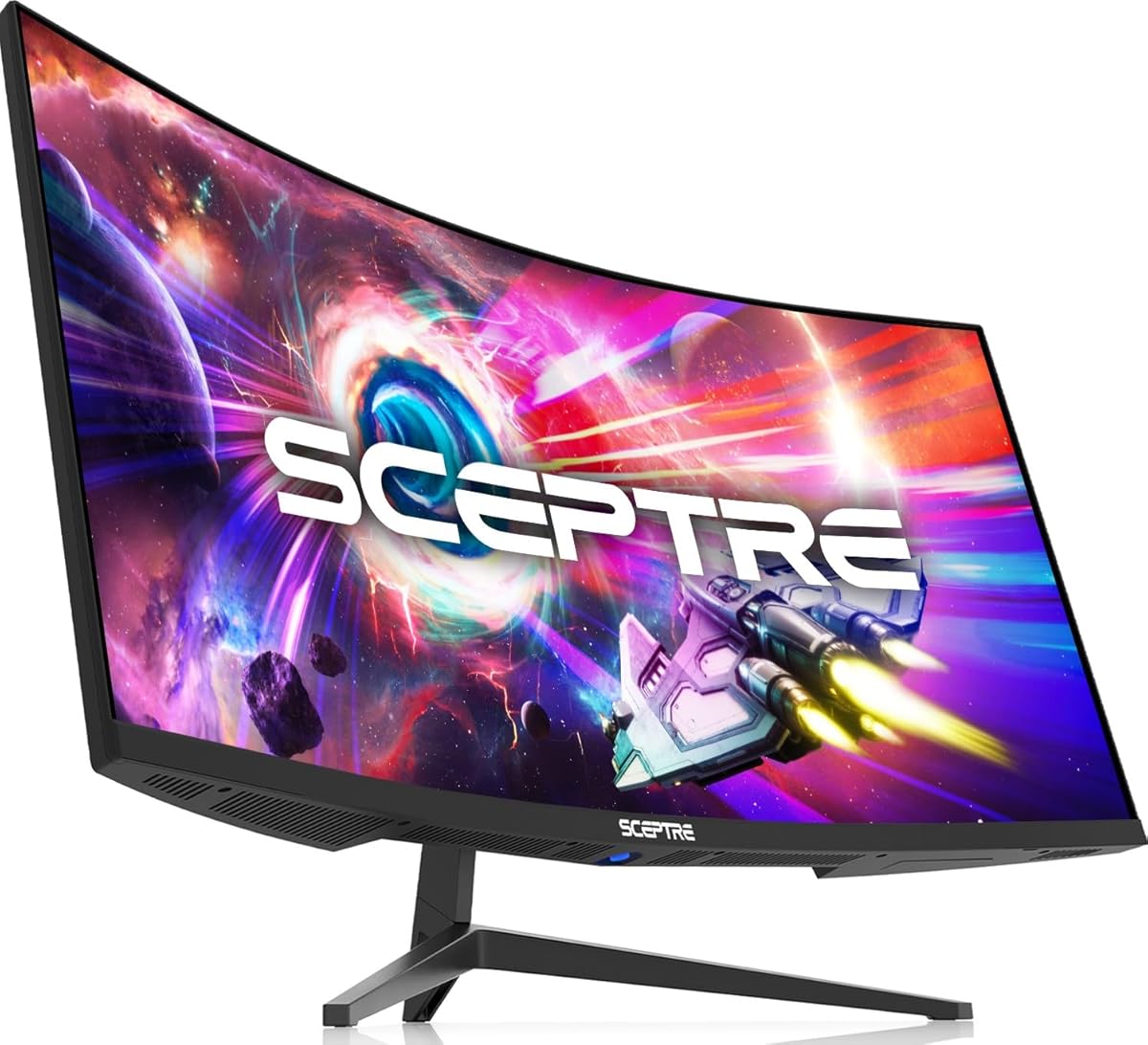
Sceptre 34-Inch Curved Ultrawide WQHD Monitor
4.2Editor score
180Hz refresh rate
1ms response time
WQHD resolution
Finding the right display can transform your workspace into a productive haven. A 34 inch curved ultrawide monitor offers expansive real estate for multitasking without needing multiple screens. This format immerses you in content while keeping essential tools within easy reach for streamlined workflows.
We evaluated ten leading models based on resolution, refresh rate, color accuracy, and ergonomic design. Our analysis focuses on how each screen handles professional tasks and entertainment demands. We considered connectivity options like USB-C and panel technologies to ensure reliable performance across various use cases.
Each selection highlights specific strengths such as gaming speed or color fidelity for creators. These picks represent diverse price points while maintaining core ultrawide benefits. Please note that specifications and availability may vary by region and stock levels over time.
4.2Editor score

4.6Editor score

4.6Editor score
As an Amazon Associate we earn from qualifying purchases.
The following table provides a side-by-side overview of key specifications across all ten models to help you quickly identify which display aligns with your specific needs for speed or visual fidelity.


The LG 34WR55QK-B stands out as a top choice for professionals needing reliable visual clarity. It received a strong rating for its color accuracy and flexible connectivity options. This model is ideal for users who value a clean desktop setup without clutter.
We may earn a commission when you buy through this link, at no additional cost to you.
Its WQHD resolution ensures sharp text and vibrant images suitable for design work. The inclusion of USB-C with power delivery simplifies laptop connections significantly. OnScreen Control allows quick window management without needing complex software.
While not optimized for high-speed gaming, its performance remains solid for general tasks. The curve helps reduce eye strain during long reading or editing sessions. Some users might prefer a faster refresh rate for competitive gaming.
This monitor is highly recommended for office environments and home workstations. It balances cost and performance well for most daily computing needs. Buyers should consider their specific workflow requirements before purchasing.
The 99% sRGB coverage ensures that images and documents appear true to life for design professionals.
USB-C support allows users to connect laptops with a single cable for both display and power.
We may earn a commission when you buy through this link, at no additional cost to you.
The Sceptre model offers impressive speed specs at a very accessible price point. It appeals to gamers looking for high frame rates without breaking the bank. Users appreciate the immersive curve and fast response for action titles.
We may earn a commission when you buy through this link, at no additional cost to you.
Refresh rates up to 180Hz ensure smooth motion during competitive matches. The 1ms response time minimizes motion blur effectively for rapid gameplay. Built-in speakers provide basic audio without extra hardware requirements.
Build quality is functional but lacks the premium finish of higher-end models. Stand adjustments are minimal compared to more ergonomic options. Picture quality is decent but color accuracy may vary under bright lighting.
This display is perfect for budget-conscious users wanting fast gaming performance. It delivers on key specs like resolution and refresh rate effectively. Buyers should expect standard performance in other areas like stand flexibility.
High refresh rates and low response times make this monitor suitable for fast-paced gaming.
The R1500 curve and LED lighting add a modern touch to the desk setup.
We may earn a commission when you buy through this link, at no additional cost to you.
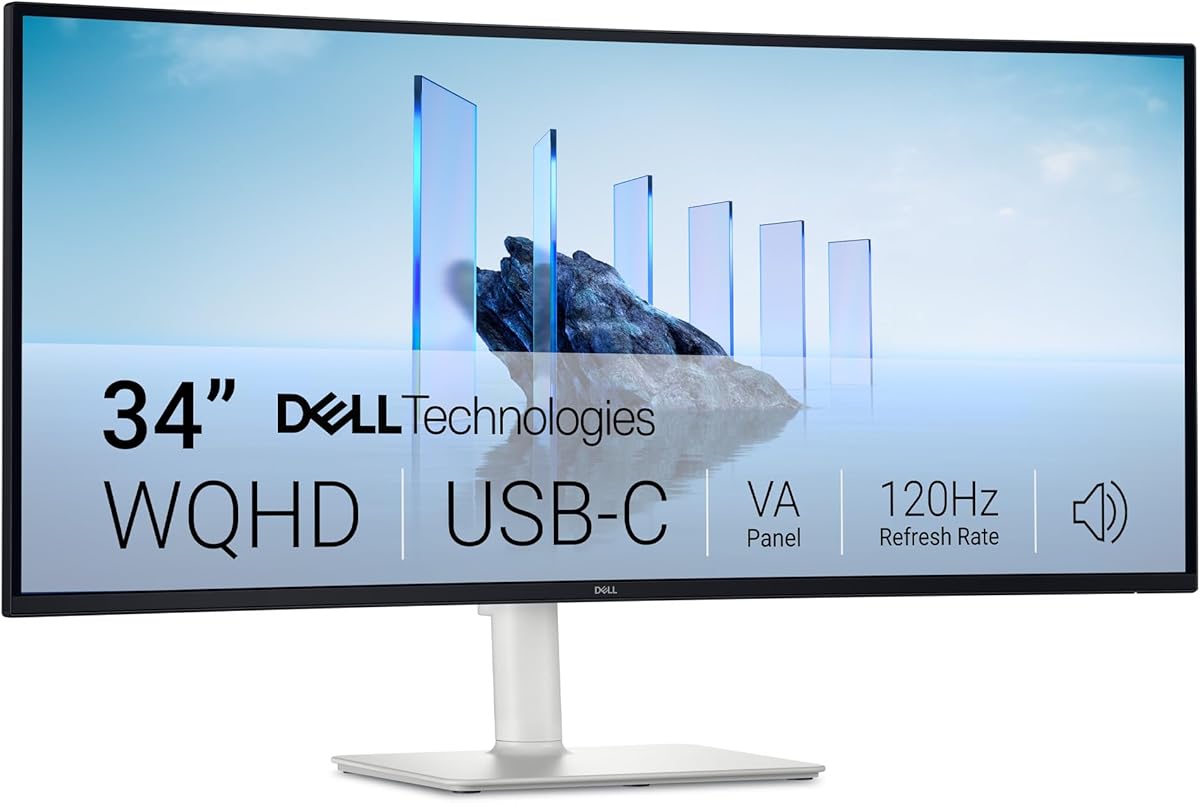
Dell focuses on health in this model with advanced blue light reduction tech. It suits users who spend many hours daily in front of a screen. The VA panel provides deep blacks for immersive movie watching.
We may earn a commission when you buy through this link, at no additional cost to you.
ComfortView Plus reduces harmful blue light emissions significantly without impacting accuracy. Fast refresh rates and FreeSync Premium handle gaming without tearing issues. The audio system delivers better output than typical built-in speakers.
Viewing angles are narrower than IPS panels which may limit sharing screens. Brightness levels are standard so HDR content lacks punch compared to dedicated HDR monitors. Overall comfort is high for long-term usage scenarios.
Ideal for remote workers or students needing eye-friendly displays. It balances performance and health features well in a single package. Users prioritizing visual comfort will find this model very supportive.
Reduced blue light emissions help minimize eye strain during extended usage periods.
VA technology ensures rich dark tones and detailed shadow visibility.
We may earn a commission when you buy through this link, at no additional cost to you.
Samsung integrates TUV-certified Intelligent Eye Care to protect vision over time. This monitor adapts brightness and color temperature automatically based on ambient conditions. The 90W USB-C power delivery handles most laptops without extra adapters.
We may earn a commission when you buy through this link, at no additional cost to you.
Its 1000R curve creates a deeply immersive field of view for users. HDR10 support enhances dynamic range for movies and content consumption. The borderless design supports focused multitasking without distracting bezels.
Refresh rates are modest compared to dedicated gaming models but sufficient for work. HDR performance depends on source content quality and system settings. Stand adjustments include height and tilt for ergonomic flexibility.
Best for professionals seeking comfort and connectivity in one device. It simplifies setups with robust USB-C capabilities. Users valuing eye health will appreciate the adaptive features included here.
Automatic adjustments to brightness help reduce eye fatigue throughout the day.
90W charging over USB-C keeps cables manageable for laptop users.
We may earn a commission when you buy through this link, at no additional cost to you.
This model uses IPS technology for consistent color across wide viewing angles. It delivers accurate visuals suitable for creative tasks and general use. USB-C connectivity with 96W power simplifies connections for modern laptops.
We may earn a commission when you buy through this link, at no additional cost to you.
Built-in speakers offer decent audio for calls and media playback. The Switch App enables quick screen layout adjustments without using menus. Ergonomic adjustments allow users to find comfortable viewing heights easily.
Refresh rates are sufficient for casual gaming but not for competitive play. HDR support is present but brightness is standard for entry-level content. Color coverage is strong for accurate design work.
Recommended for creatives needing reliable color reproduction at home. It balances workflow features with solid display performance. Users should prioritize color fidelity and connectivity over gaming speed.
IPS panels maintain color accuracy even when viewed from different angles.
The Switch App simplifies multitasking with instant layout changes.
We may earn a commission when you buy through this link, at no additional cost to you.
The Sceptre Prime Gaming Monitor delivers exceptional speed for its price. Gamers can enjoy up to 240Hz refresh rates for fluid motion. 1ms response times help reduce ghosting during intense action sequences.
We may earn a commission when you buy through this link, at no additional cost to you.
It supports multiple connection types including dual HDMI and DisplayPort. The sRGB coverage ensures vibrant colors for media consumption too. Built-in speakers provide convenience for basic audio needs.
Build quality remains functional with minimal premium finishing touches. Stand options are limited to basic tilt adjustments. Color accuracy is good but not professional grade for critical work.
Perfect for budget gamers wanting high-speed performance without overspending. It prioritizes frame rates and responsiveness over other features. Buyers seeking fast visuals should consider this option.
High refresh rates ensure smooth visual transitions during competitive gaming.
Multiple HDMI and DisplayPort inputs allow flexible device setups.
We may earn a commission when you buy through this link, at no additional cost to you.
MSI delivers solid performance with VA panel contrast and smooth motion. The 120Hz refresh rate handles daily tasks and light gaming well. TÜV certified features help reduce eye strain during long sessions.
We may earn a commission when you buy through this link, at no additional cost to you.
High contrast ratios make dark content look rich and detailed. Adaptive Sync ensures tear-free visuals during gaming or video playback. VESA mountability supports flexible desk configurations and wall setups.
Viewing angles are typical for VA panels so direct views are best. Stand adjustments are minimal requiring external arms for better ergonomics. Audio is functional but lacks depth for immersive sound.
Ideal for office users needing reliable multitasking displays. It balances performance and health certifications effectively. Those wanting high contrast will appreciate this screen's capabilities.
Deep blacks and vibrant details enhance content quality for various media.
VESA mount compatibility allows custom mounting solutions for comfort.
We may earn a commission when you buy through this link, at no additional cost to you.
This LG model includes Black Stabilizer to brighten dark game scenes. It helps players spot enemies quickly in low-light environments. The 120Hz rate offers smooth visuals for both work and gaming.
We may earn a commission when you buy through this link, at no additional cost to you.
LG Switch provides intuitive on-screen controls for quick adjustments. The borderless design reduces distractions during focused work sessions. Stand ergonomics allow tilt and height customization for comfort.
HDR capabilities are entry level and rely on source quality. Audio is present but not designed for immersive sound experiences. Overall utility is strong for general users and gamers alike.
Recommended for mixed-use setups requiring flexible tools. It balances gaming utilities with standard productivity features. Users should consider its specific gaming tools before buying.
Black Stabilizer improves visibility in dark scenes for better reaction times.
LG Switch streamlines display adjustments with desktop hotkeys.
We may earn a commission when you buy through this link, at no additional cost to you.
Alienware brings premium gaming features with a 180Hz refresh rate. This model delivers vivid colors and deep blacks for immersive entertainment. VESA DisplayHDR 400 certification ensures brighter highlights and better contrast.
We may earn a commission when you buy through this link, at no additional cost to you.
Low blue light hardware solutions help preserve color accuracy while reducing strain. Console mode optimizes settings for non-PC gaming devices. Response times are quick for competitive play without blur.
Price is higher than average for ultrawide displays. Stand adjustments are basic relative to the premium price point. Overall performance is strong for dedicated gaming setups.
Best for serious gamers wanting high performance and HDR. It offers a premium experience with reliable tech. Users prioritizing gaming visuals will find it very appealing.
DisplayHDR 400 certification provides enhanced brightness and contrast for media.
Dedicated console mode optimizes display for non-PC gaming platforms.
We may earn a commission when you buy through this link, at no additional cost to you.
Samsung ViewFinity S5 offers clean visuals and streamlined management. Its HDR10 support optimizes contrast for detailed image viewing. Eye Saver Mode reduces blue light significantly for comfortable long sessions.
We may earn a commission when you buy through this link, at no additional cost to you.
The 120Hz refresh rate minimizes lag during motion and gaming. HDMI and DisplayPort ports ensure convenient interface options for setup. Visual management tools make switching between tasks simple.
Contrast levels are standard compared to high-end VA panels. Stand options are basic requiring external solutions for ergonomic adjustment. Overall clarity remains high for general daily tasks.
Ideal for users needing clear visuals and easy control. It balances performance with visual comfort well. Buyers valuing clarity and eye protection should consider this.
Easy task switching and clear visuals help maintain productivity flow.
Eye Saver Mode ensures long sessions do not cause excessive strain.
We may earn a commission when you buy through this link, at no additional cost to you.
Choosing the right ultrawide monitor involves balancing resolution, refresh rate, color accuracy, and ergonomic features to suit your specific use case and budget.
Resolution determines how sharp text and images appear on screen. For a 34 inch screen, WQHD (3440 x 1440) offers ideal balance between clarity and performance. Lower resolutions may look pixelated at this size while higher ones need stronger graphics cards.
Prioritize WQHD for crisp visuals across most applications.
Refresh rate affects how smooth motion appears during gaming or video. Aim for 120Hz or higher for fluid gameplay. Response time controls blur and ghosting; 1ms is best for competitive action.
Choose faster refresh rates if gaming is a priority.
IPS panels provide wider viewing angles and better color accuracy. VA panels offer deeper blacks and higher contrast ratios. TN panels are fast but have poor viewing angles and color quality.
Select IPS for color work and VA for immersive content.
Designers should check sRGB and DCI-P3 coverage values. 99% sRGB is standard for accurate media editing. HDR certification adds dynamic range but may not be fully realized without high brightness.
Review color specs if professional image work is needed.
USB-C with power delivery simplifies desk setups by handling data and power via one cable. HDMI and DisplayPort support ensure compatibility with various GPUs. Multiple inputs allow easy switching between devices.
Ensure the monitor offers necessary ports for your laptop or PC.
Adjustable stands for height and tilt reduce neck strain during long use. VESA mount compatibility allows use of monitor arms for flexible positioning. Check build quality to ensure stability when adjusting.
Prioritize ergonomic adjustments for daily long sessions.
Blue light filters and flicker-free technology reduce eye fatigue. TUV certification validates these claims for safety. Some monitors automatically adjust brightness to match ambient lighting.
Look for certified eye care features if working long hours.
Curved displays mimic natural eye field of view reducing distortion at edges. Lower curvature numbers like 1000R offer deeper immersion. Higher numbers like 1800R are subtler and better for text work.
Choose curve depth based on how immersive you want the experience.
Proper setup starts with positioning the monitor at eye level to reduce neck strain. Adjust the stand height so the top of the screen is slightly below your gaze. Use tilt to minimize glare from windows or overhead lights.
Calibrate your display settings using built-in tools or software to match content. Adjust brightness to match ambient room lighting for comfort. Use presets like sRGB mode for consistent color accuracy.
Clean the screen with a soft microfiber cloth to avoid scratches. Avoid harsh chemicals that may damage anti-glare coatings. Regularly check cable connections to prevent signal interruptions or loss of power.
Curved monitors reduce distortion at screen edges and provide deeper immersion by matching the natural field of vision. They make multitasking easier by allowing users to see more content without turning their heads frequently.
Yes, they offer significantly more screen real estate than standard displays allowing multiple windows side by side. This layout reduces the need for secondary monitors and improves workflow efficiency significantly.
A powerful GPU is recommended for gaming at high resolutions but regular computers can handle basic productivity tasks. Most ultrawides run smoothly with integrated graphics for office work and web browsing.
Most models feature multiple inputs like HDMI and DisplayPort allowing easy switching between devices. Some even support Picture-by-Picture for viewing two sources simultaneously on one screen.
HDR adds contrast and color depth for compatible content. However, brightness levels on budget ultrawides may limit its full effect compared to dedicated HDR monitors.
Use a dry microfiber cloth to wipe away dust gently. Avoid spraying liquids directly on the screen and never use abrasive cleaners that might scratch the surface or damage coatings.
These ten models cover a range of needs from budget-friendly options to premium gaming setups. Each delivers the core ultrawide benefits while emphasizing unique strengths in speed or clarity.
Consider your primary use case whether gaming or design when prioritizing refresh rates or color accuracy. Ergonomics and connectivity are critical for long-term comfort and efficient workflows.
Prices and availability may fluctuate so always check current offers before finalizing your purchase. Investing in the right display now ensures a more productive workspace for years to come.