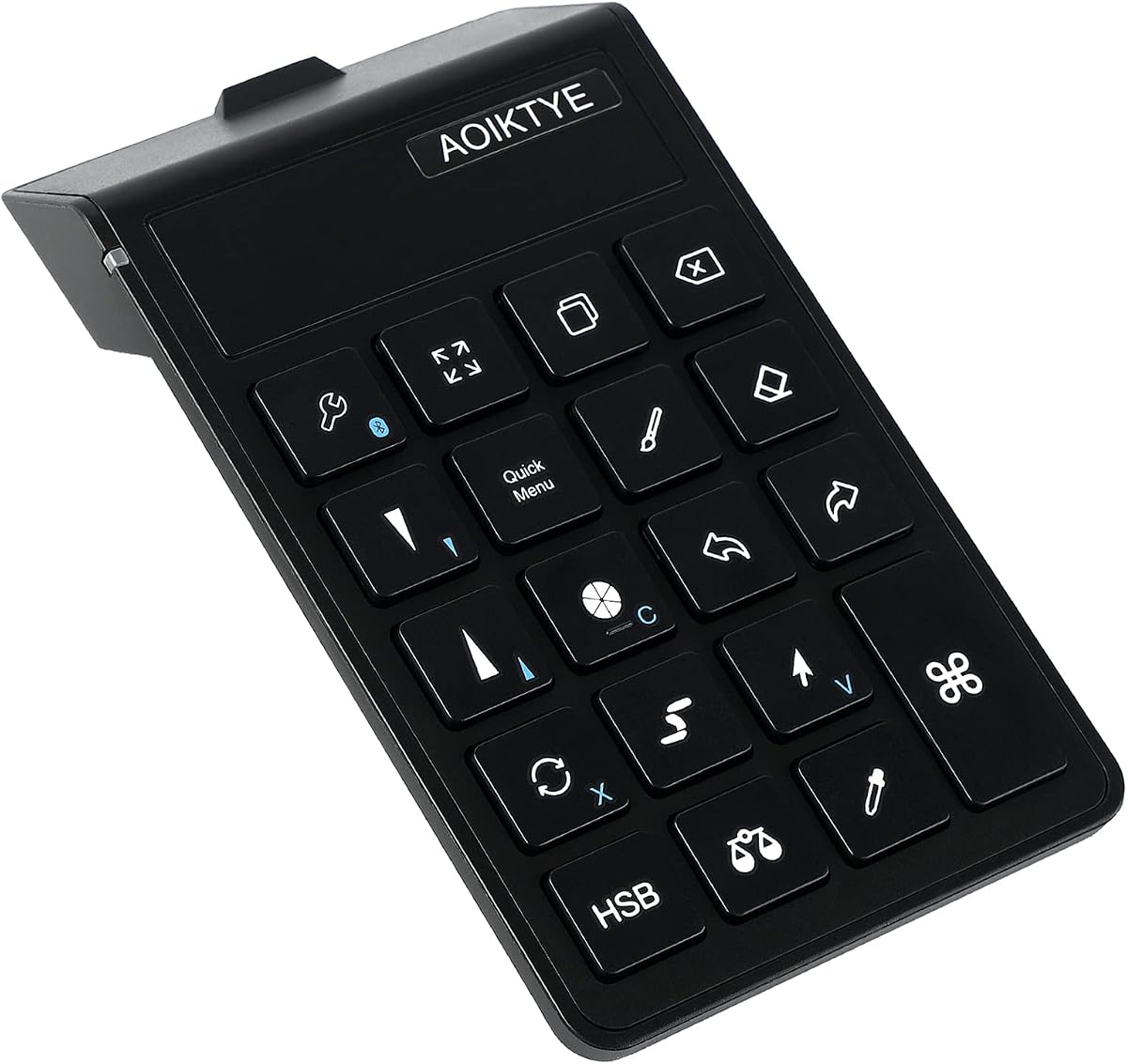
AOIKTYE Wireless Keyboard for Procreate
4.5Editor score
Twenty two shortcut keys
Eighty four hour battery
Optimized for Procreate app
Discover the top 10 iPad drawing Bluetooth controllers compared for digital artists seeking precision shortcuts and workflow efficiency in 2026.
Digital artists often struggle with limited screen space and complex software shortcuts on tablets. A dedicated drawing controller solves this by providing tactile buttons for frequent actions like layer management and brush adjustment. These devices transform your workflow by allowing one-handed operation while keeping your eyes on the canvas.
This guide compares ten highly rated Bluetooth controllers designed specifically for iPad and tablet drawing tasks. We evaluated each device based on connectivity stability, programmable key counts, ergonomic design, and software compatibility. Our analysis ensures you find a tool that integrates seamlessly with applications like Procreate and Photoshop.
Each product entry details specific features, user ratings, and real-world performance metrics to help you make an informed decision. We highlight unique benefits such as dual dials, trackpads, and battery life to match your creative needs. Please note that pricing and availability may fluctuate so check current listings before purchasing.
4.5Editor score

5.0Editor score

4.4Editor score
We compared ten distinct Bluetooth controllers ranging from specialized shortcut keypads to full game-style pads. Each entry features unique connectivity options and customization levels tailored for digital painting and design work on iPad and desktop systems.


The DIGIDRAW K30 stands out as the top choice for artists needing precise control over their digital drawing workflow. With a perfect five-star rating it offers a rare combination of dual dials and customizable shortcuts in a portable form factor. This device is ideal for those who want to adjust brush sizes and navigate layers without interrupting their creative flow.
We may earn a commission when you buy through this link, at no additional cost to you.
Its dual dial system allows independent control over zoom and brush size while the eleven custom keys handle essential shortcuts like undo and layer switching. The tactile positioning ensures you can operate it by feel without looking away from your canvas. The ultra light 82g design makes it comfortable for long sessions whether you are at a desk or on the go.
While it requires downloading a driver for full customization the setup process is straightforward and unlocks powerful features. The only minor drawback is the lack of a built-in display which means you rely on the on-screen app for feedback. These trade-offs are acceptable given the performance and precision it delivers for complex drawing tasks.
This controller is best suited for digital painters and illustrators using Photoshop or Clip Studio Paint on iPad or PC. It balances portability with high-end control features making it a professional tool for serious creators. If you prioritize workflow efficiency and tactile feedback the K30 is the most reliable option available.
Independent dials let you adjust brush size and zoom simultaneously for faster editing.
Raised markers on keys enable blind operation keeping your focus on the artwork.
We may earn a commission when you buy through this link, at no additional cost to you.
The AOIKTYE keyboard is an excellent budget option specifically tailored for users of the Procreate app on iPad. It features twenty-two shortcut keys that streamline common drawing tasks like color picking and undoing actions. This device provides a cost-effective way to enhance productivity without breaking the bank.
We may earn a commission when you buy through this link, at no additional cost to you.
Its main strength lies in its specialization for Procreate making the learning curve minimal for daily users. The battery life is impressive lasting up to eighty-four hours which means infrequent charging needs. The wireless connection ensures a clutter-free workspace allowing you to draw comfortably from a distance.
While the build quality is functional it lacks the premium feel of higher-end devices. Additionally the shortcuts are primarily designed for Procreate so compatibility with other software may be limited. However for Procreate enthusiasts these limitations are minor compared to the value offered.
This keyboard is perfect for students or hobbyists looking to upgrade their iPad setup affordably. It simplifies complex gestures into single taps making drawing more enjoyable and efficient. If you work primarily in Procreate this is the most practical and economical choice available.
Shortcuts are mapped to common Procreate tools for instant access.
The large battery ensures weeks of use between charges.
We may earn a commission when you buy through this link, at no additional cost to you.
The TourBox Lite brings premium build quality and intuitive design to tablet artists seeking a high-end control device. It features a refined eight-key layout that simplifies complex creative actions into simple gestures. The wireless connectivity and ergonomic shape make it a pleasure to use for extended periods.
We may earn a commission when you buy through this link, at no additional cost to you.
Its unified control system allows you to switch between apps without reconfiguring settings manually. The on-screen HUD provides real-time feedback so you always know what each button is doing. The tactile knob and raised buttons give clear physical feedback ensuring precision adjustments.
The main trade-off is the higher price compared to standard keypads. You also need to install the TourBox Console software to unlock full customization. These requirements are worth it for professionals who value reliability and seamless integration with their workflow.
This controller is ideal for graphic designers and video editors working across multiple creative applications. It reduces screen clutter and keeps your hands on the drawing surface. If you want a polished and reliable tool the TourBox Lite delivers top-tier performance.
Switch apps instantly without losing your custom shortcut settings.
Bluetooth allows you to position the device wherever fits your desk.
We may earn a commission when you buy through this link, at no additional cost to you.
The HUION Keydial Mini is a compact and affordable tool designed to streamline drawing on Mac and PC systems. It features eighteen programmable keys plus a rotary dial for managing brush sizes and timelines. This setup is great for users who want quick access to shortcuts without cluttering their desk.
We may earn a commission when you buy through this link, at no additional cost to you.
Its anti-ghosting technology ensures reliable input even when pressing multiple keys simultaneously. The preview function helps you remember what each button does so you spend less time consulting manuals. The battery life supports long work sessions without needing frequent recharging.
While the keys are small they are easy to reach for most users. Customization requires installing the Huion driver which adds an initial setup step. For beginners this might be a slight hurdle but experienced users will find it flexible.
This keypad works well for digital artists who need a dedicated control surface. It is particularly useful for photo editing and video production where precision is key. If you want a simple portable solution this is a strong contender.
Turn the dial to adjust brush size instantly without menus.
Light enough to carry anywhere for work on the go.
We may earn a commission when you buy through this link, at no additional cost to you.
The XPPen Mini Keydial offers a versatile solution for artists using various drawing software. With ten programmable keys and a dial you can customize up to four sets of shortcuts. This flexibility makes it suitable for switching between different creative projects easily.
We may earn a commission when you buy through this link, at no additional cost to you.
Its battery capacity is huge lasting up to three hundred hours on a single charge. The anti-ghosting feature ensures that complex combinations work without errors. The dial provides tactile feedback helping you navigate timelines or zoom in and out smoothly.
The device requires a driver to unlock full customization which may delay immediate use. However once configured it saves significant time during editing sessions. It supports Linux Mac and Windows making it a cross platform choice.
This is an excellent tool for professionals who need reliable performance across multiple systems. It helps keep your hands on the drawing surface while accessing essential commands. If you value long battery life and flexibility this is a smart buy.
Switch between four shortcut sets for different apps instantly.
Charge once and work for months without interruption.
We may earn a commission when you buy through this link, at no additional cost to you.
The Clip Studio Tabmate 2 is a specialized device designed for users of Clip Studio Paint on iPad. It features dedicated buttons for common CSP functions making drawing smoother and faster. The included software license adds value for new users looking to start creating.
We may earn a commission when you buy through this link, at no additional cost to you.
Its Bluetooth Low Energy connection ensures stable pairing with minimal battery drain. The device supports various platforms including Android and Windows giving it broad reach. However it is optimized specifically for Clip Studio Paint and may not work with other apps.
One drawback is the need for AA batteries which are not included. This can be inconvenient compared to rechargeable models. Despite this the dedicated functionality for CSP users makes it a practical tool.
This controller is perfect for manga artists and illustrators working in Clip Studio. It reduces the need to reach for a keyboard during critical drawing moments. If you use CSP regularly this device significantly enhances your productivity.
Shortcuts match common tool settings and layer functions.
Includes a one-year license to get started immediately.
We may earn a commission when you buy through this link, at no additional cost to you.
The Modded Tablet Controller is a hybrid device suited for artists who also enjoy gaming on their iPad. It features Hall Effect triggers for precise input and a gyroscope for motion control. This versatility makes it a unique option for creative entertainment setups.
We may earn a commission when you buy through this link, at no additional cost to you.
Its battery life is robust allowing days of continuous use between charges. The magnetic parts let you customize the look and feel of the controller. The expandable design fits a range of tablet sizes securely.
However it is bulkier than compact keypads and requires careful positioning on your desk. Setup might take time to map drawing shortcuts to game buttons. It is a niche product that serves both needs well.
This is great for creators who want a single device for work and play. It provides tactile feedback similar to a console which helps with precision. If you need dual functionality this is an outstanding choice.
Advanced triggers offer smooth response and long lifespan.
Gyroscope enables tilt-based controls for dynamic effects.
We may earn a commission when you buy through this link, at no additional cost to you.
The ShanWan controller is designed for flexibility allowing you to map keys for different uses. It supports keyboard and mouse inputs which helps in navigating drawing apps on Android. This is a strong option for mobile creatives who need varied controls.
We may earn a commission when you buy through this link, at no additional cost to you.
Its ergonomic grip reduces fatigue during long sessions. The wireless connection keeps your setup clean and portable. Custom mapping lets you assign specific functions to buttons for better workflow.
Setup can be complex as you must configure mappings manually for each app. Response times may vary depending on your device. These issues can be resolved with patience and testing.
This controller suits users who need a single device for multiple platforms. It brings console-level input precision to drawing apps. If you need versatility across devices this is a practical tool.
Switch between keyboard mouse and game modes easily.
Comfortable shape supports extended drawing without strain.
We may earn a commission when you buy through this link, at no additional cost to you.
The TNP iPad Remote is primarily a navigation tool but can aid in drawing workflows. Its trackpad lets you move the cursor across the screen without tapping. This is helpful for tasks that require precise positioning beyond finger gestures.
We may earn a commission when you buy through this link, at no additional cost to you.
It includes media playback buttons and Siri access which adds utility. The Home button allows quick app switching for efficient multitasking. Bluetooth 5.0 ensures stable connectivity within a reasonable range.
It lacks dedicated drawing shortcuts so it is less specialized than others. It is best used as a supplementary tool for navigation. Users looking for drawing control might find it limited.
This remote is best for those who need a media and navigation assistant. It helps manage your workspace without touching the screen. If you value cursor control this is a convenient add-on.
Control cursor movements smoothly across large displays.
Manage music and video playback with dedicated buttons.
We may earn a commission when you buy through this link, at no additional cost to you.
The Wacom Intuos Small is a full drawing tablet with Bluetooth connectivity. It offers high precision pen input that feels like drawing on paper. This is a trusted choice for artists needing accurate hand control.
We may earn a commission when you buy through this link, at no additional cost to you.
Its pressure sensitive pen requires no batteries making it easy to use. The bundled software gives you tools to start creating right away. It connects wirelessly for a clutter-free desk setup.
While it works best with computers it has limited functionality on iPad. It is a dedicated drawing surface rather than a remote controller. Users seeking a standalone drawing tool will appreciate this.
This tablet is ideal for beginners who want professional-level precision. It supports various drawing applications seamlessly. If you want a reliable drawing input device this is a top recommendation.
Control stroke width with natural hand movements.
Bluetooth reduces cable clutter for a clean workspace.
We may earn a commission when you buy through this link, at no additional cost to you.
Choosing the right controller depends on your specific workflow and software needs. Consider the following factors to find the best match for your creative goals.
Ensure the device works with your preferred applications like Procreate or Clip Studio Paint. Some controllers are optimized for specific apps while others offer broader support.
Always verify app compatibility before purchasing to avoid limited functionality.
Look for a controller with a long-lasting battery to avoid interruptions during creative sessions. Models offering 80 hours or more are ideal for extended work.
A longer battery life ensures you can work for days without worrying about recharging.
Choose a design that fits comfortably in your hand for hours of use. Lightweight devices reduce fatigue and allow for smoother control.
Prioritize devices with raised buttons or tactile feedback for blind operation.
Bluetooth 5.0 offers stable and fast connections with minimal lag. Ensure your iPad supports the required Bluetooth version for optimal performance.
Wireless connectivity keeps your workspace tidy and allows flexible positioning.
Check if the controller allows you to map keys to your specific shortcuts. Advanced models support multiple sets for different apps.
High customization ensures the tool adapts to your unique workflow.
Durable materials ensure the device withstands daily use and accidental drops. Metal components often provide better durability than plastic.
Invest in a sturdy device that lasts longer over time.
Balance your budget with the features you need. Budget models offer essential shortcuts while premium ones provide dual dials and better build quality.
Select a device that meets your core needs without overspending.
If you travel or work in different locations choose a compact and lightweight controller. Small devices are easier to pack and carry.
Portability ensures you can create anywhere without being tethered to a desk.
First connect your controller to the iPad via Bluetooth settings and ensure both devices are charged. Pairing usually requires enabling discovery mode on the controller and selecting it on your iPad.
Next download any required driver or companion app to configure your custom shortcuts. Assign frequently used actions like brush size changes or layer switching to individual keys for efficiency.
Finally maintain the device by keeping it clean and charging it regularly. Avoid exposing it to extreme temperatures to ensure long battery life and performance stability.
Not all controllers are optimized for Procreate. Specialized models like the AOIKTYE keyboard are designed for it while others may require manual mapping. Check compatibility lists before purchasing to ensure your app is supported.
You can connect via Bluetooth by enabling discovery mode on the controller. Open iPad Settings go to Bluetooth and select the device from the list. Ensure both devices have sufficient battery for a stable connection.
Most controllers allow customization through a companion app or driver. You can map keys to specific functions like undo or layer changes. Customization adds flexibility to adapt to your workflow.
Most modern controllers use rechargeable batteries via USB-C. Some specialized models may still use AA batteries. Check product details to confirm the power source before buying.
Some game controllers can be mapped for drawing but are not optimized for touch precision. They may work for basic navigation but dedicated drawing tools offer better sensitivity and shortcuts.
Basic connectivity works without drivers but full customization usually requires them. Drivers unlock advanced features like mapping keys to specific software functions. Always check the product description for software requirements.
Battery life typically ranges from 40 hours to 300 hours per charge. High-capacity models offer weeks of use while smaller ones may need frequent charging. Look for USB-C charging for convenience.
The DIGIDRAW K30 stands out as the top choice for its dual dial precision and lightweight design perfect for professional artists. The AOIKTYE keyboard offers a budget-friendly alternative tailored specifically for Procreate users. The TourBox Lite provides premium build quality and unified control for multi-app workflows.
When selecting a device prioritize software compatibility and battery life to ensure uninterrupted creative sessions. Look for ergonomic features that reduce strain during long drawing periods. Customization options will ultimately determine how well the device fits your unique needs.
Remember that prices and availability can change quickly so verify current listings before finalizing your purchase. Check for any bundle deals that include software or accessories to maximize value. With the right controller you can significantly streamline your digital art workflow.