10 Best External Webcams for Mac (November 2026) Expert Guide
Written by Alex · Updated November 2026
Finding the right external webcam for your Mac can significantly improve your video call experience. With many options available, selecting one that offers crisp video, clear audio, and seamless macOS integration is essential for professionals and creators alike.
We have carefully evaluated the leading external webcams on the market to create this comprehensive guide. Our analysis focuses on resolution, autofocus capabilities, microphone quality, and build durability to ensure you get a reliable device for daily use.
Each recommendation below highlights specific strengths and ideal use cases for different needs. Please note that product availability and pricing may change over time, so we encourage you to verify current details before making your final purchase decision.
Top 3 Picks for Best External Webcams for Mac
Best Budget
Logitech C922x HD Pro PC Webcam, Full HD 1080p/30fps or 720p/60fps Video, HD Light Correction, Works with Microsoft Teams, Google Meet, Zoom, Nintendo Switch 2’s new GameChat mode, Mac/Tablet- Black
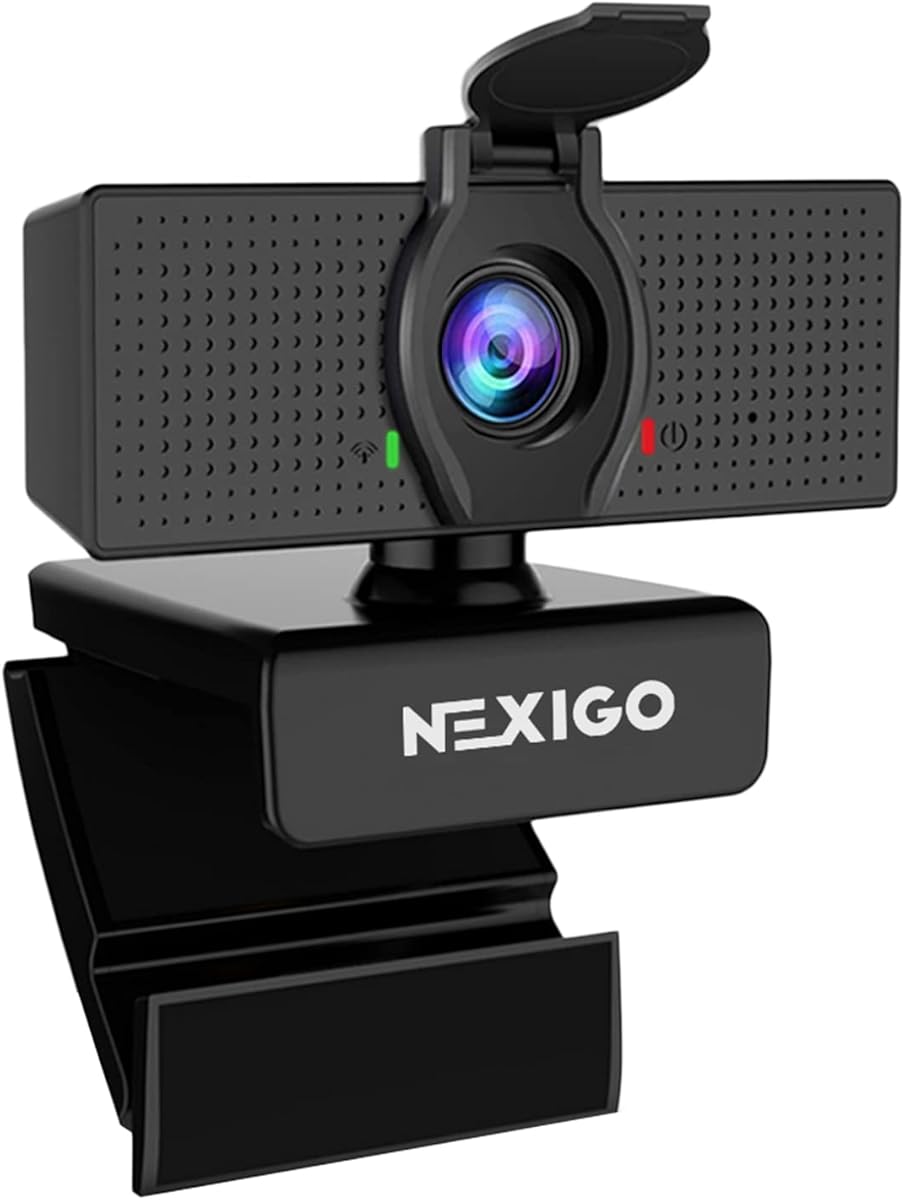
NexiGo N60 1080P Webcam with Microphone, Software Control & Privacy Cover, USB HD Computer Web Camera, Plug and Play, for Zoom/Skype/Teams, Conferencing and Video Calling
As an Amazon Associate we earn from qualifying purchases.
Top 10 Best External Webcams for Mac in 2026 Compared
The following table provides a side-by-side comparison of the top ten external webcams recommended for Mac users. Review the key specifications to find the model that best fits your specific workflow and video quality requirements.
Acer 4K Webcam for PC/Mac with All-Metal Unibody Sculpted, Sony 1/2" Sensor, PDAF, 2 Noise Reduction Mics, Privacy Cover for Switch 2/Zoom/Teams/Facetime/YouTube/Google Meet
Sony 1/2 CMOS sensor
Phase Detection Autofocus
All-aluminum unibody design
Dual high-sensitivity digital mics
This Acer 4K Webcam stands out as the top recommendation for Mac users seeking professional-grade video quality. With a rating of 4.6 stars, it delivers exceptional performance through its Sony sensor and robust construction that rivals high-end studio cameras.
Pros
Outstanding 4K video clarity
Premium metal build quality
Fast and accurate autofocus
Effective noise reduction mics
Secure magnetic privacy cover
Cons
Slightly higher price point
May require USB-C adapter
We may earn a commission when you buy through this link, at no additional cost to you.
The camera shines with its true 4K resolution and Phase Detection Autofocus, ensuring that you remain sharp and in focus even when moving around during calls. The aerospace-grade aluminum body not only looks premium on your desk but also aids in heat dissipation for long sessions.
While it is priced higher than basic options, the trade-off is justified by the superior image quality and durable build. The privacy cover is securely magnetic, and the included USB-C to A adapter ensures broad compatibility with MacBooks and other devices.
If you prioritize visual clarity and build quality for business meetings or content creation, this webcam is the ideal choice. It supports major platforms like Zoom and Teams seamlessly, making it a reliable tool for daily professional communication.
Professional Image Quality
The 4K resolution combined with the Sony sensor captures true-to-life visuals that make you look polished during video conferences and streaming sessions.
Durability and Design
Crafted with precision CNC machining, the all-metal unibody design provides a sleek look while ensuring the camera remains cool during extended use.
Anker PowerConf C200 2K Webcam for PC/Laptop/Mac, Low-Light Correction
2K Ultra-Clear resolution
AI noise cancellation audio
Superior low-light performance
Adjustable viewing angles
The Anker PowerConf C200 offers a compelling mix of performance and value for Mac users who frequently work in varied lighting conditions. Rated 4.4 stars, it delivers sharp 2K video and handles dim environments better than many competitors in its price range.
Pros
Clear 2K video resolution
Excellent low-light correction
AI noise cancellation for audio
Wide customizable viewing angles
Integrated privacy slide cover
Cons
Software needed for angle adjustment
No native 4K support
We may earn a commission when you buy through this link, at no additional cost to you.
Its standout feature is the superior low-light performance, which captures crisp images without needing additional lighting equipment. The AI noise cancellation ensures your voice is heard clearly even in noisy office environments, making it ideal for virtual meetings and remote work.
While it lacks 4K resolution, the 2K quality is more than sufficient for most video conferencing needs. The customizable viewing angles allow you to frame your shot perfectly, though this requires using the companion software which adds a slight setup step.
This camera is perfect for users who need reliable performance in home offices or poorly lit rooms. Its compatibility with macOS ensures a smooth setup, and the privacy cover provides peace of mind between calls.
Low-Light Optimization
The webcam captures crisp images in dim settings without extra lighting, ensuring you look clear during late-night or indoor meetings.
Audio Clarity
Dual microphones paired with AI noise cancellation ensure voices are crystal clear, filtering out background noise effectively.
Logitech C922x HD Pro PC Webcam, Full HD 1080p/30fps or 720p/60fps Video, HD Light Correction, Works with Microsoft Teams, Google Meet, Zoom, Nintendo Switch 2’s new GameChat mode, Mac/Tablet- Black
1080p/30fps or 720p/60fps
HD light correction
Stereo audio dual mics
XSplit VCam software license
The Logitech C922x HD Pro is a favorite among streamers and content creators who need versatile performance options. With a strong rating of 4.6 stars, it offers advanced features like 60fps recording at 720p, making it ideal for smooth motion capture during gaming or streaming.
Pros
Dual frame rate options
Excellent HD light correction
Stereo audio quality
Includes software for background replacement
Broad platform compatibility
Cons
No privacy shutter included
Higher price than basic models
We may earn a commission when you buy through this link, at no additional cost to you.
Its HD light correction technology fine-tunes lighting to produce bright, razor-sharp images even in low-light settings. The stereo audio with dual microphones ensures natural sound quality, and the included XSplit VCam license allows you to blur backgrounds without a green screen.
Although it lacks a physical privacy shutter, the software capabilities make up for it by offering robust control over your video feed. It works seamlessly with Mac systems and major conferencing platforms, ensuring flexibility for both work and entertainment use.
If you are looking for a webcam that doubles as a streaming tool, this model is highly recommended. The combination of flexible frame rates and background replacement software adds significant value for creative professionals.
Flexible Recording Options
Choose between 1080p at 30fps or 720p at 60fps to balance resolution and smoothness based on your recording needs.
Advanced Audio and Visuals
Stereo audio and automatic light correction ensure your content looks and sounds professional without extra equipment.
NexiGo N60 1080P Webcam with Microphone, Software Control & Privacy Cover, USB HD Computer Web Camera, Plug and Play, for Zoom/Skype/Teams, Conferencing and Video Calling
1080P Full HD video
30fps frame rate
Noise-cancelling microphone
Privacy cover included
The NexiGo N60 is an excellent entry-level choice for Mac users who want reliable 1080p video without spending a fortune. It holds a rating of 4.3 stars and delivers sharp video quality suitable for daily meetings and casual video calls.
Pros
Affordable price point
1080p Full HD quality
Built-in noise-cancelling mic
Privacy cover included
Easy plug and play
Cons
Basic autofocus performance
Fixed field of view
We may earn a commission when you buy through this link, at no additional cost to you.
It features a built-in noise-cancelling microphone that reduces ambient noise to enhance sound quality, making it great for calls in busy environments. The privacy cover is a thoughtful addition that blocks the lens when not in use, offering security and peace of mind.
While it does not have advanced autofocus or premium build materials, it performs consistently for standard tasks. The USB plug and play setup ensures you are ready to use it in minutes, regardless of your technical expertise.
For those on a tight budget, this webcam provides the best value for money. It is compatible with macOS and supports major conferencing apps, making it a practical choice for students and remote workers alike.
Budget-Friendly Performance
Delivers Full HD 1080p video at 30fps, offering clear visuals for video calls without the premium price tag.
Privacy and Convenience
Includes a privacy cover to block the lens and requires no drivers for immediate plug-and-play usage.
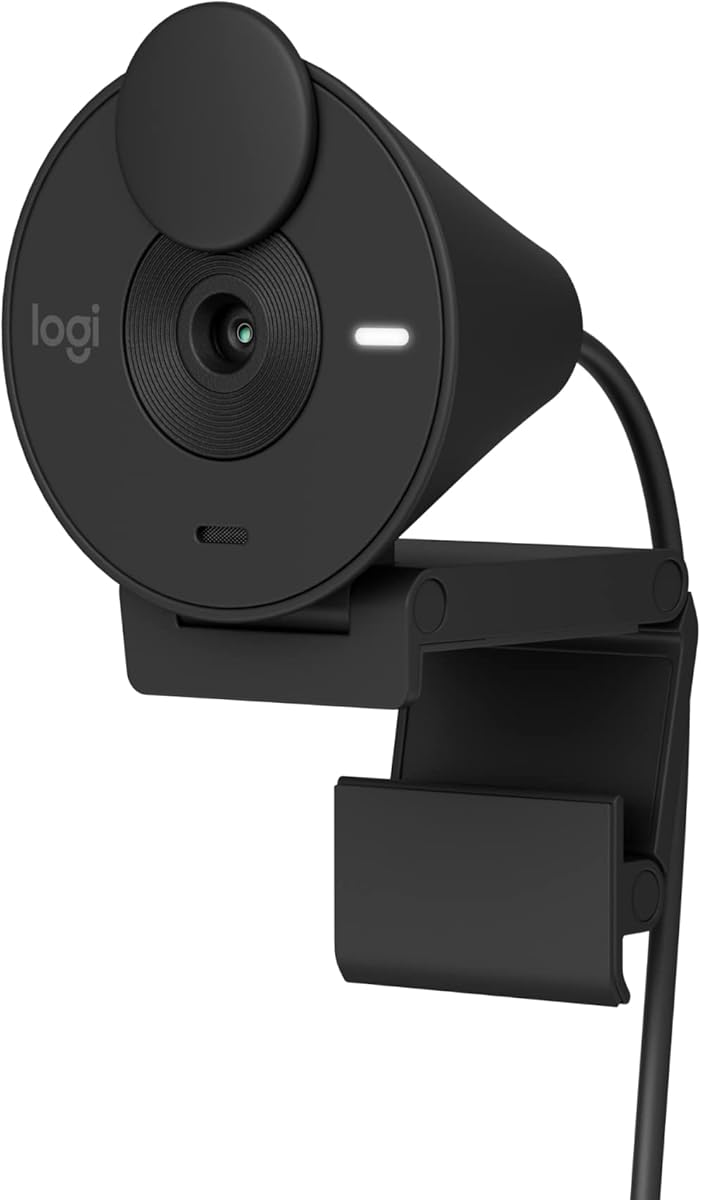
Logitech Brio 100 Full HD 1080p Webcam for Streaming and Meetings – White
1080p Full HD resolution
RightLight auto-light balance
Built-in microphone
Integrated privacy cover
The Logitech Brio 100 offers a sophisticated look with its white finish and high-quality Full HD performance. Rated 4.4 stars, it is designed to complement modern Mac setups while providing reliable video clarity for meetings and streaming.
Pros
Sophisticated white design
RightLight auto-light balance
Privacy cover with slide mechanism
Works with Nintendo Switch
Made with recycled materials
Cons
Fixed field of view
Monaural microphone
We may earn a commission when you buy through this link, at no additional cost to you.
RightLight technology boosts brightness by up to 50%, reducing shadows so you look your best in video calls. The integrated privacy cover slides easily over the lens for security, and the webcam supports popular platforms like Teams and Zoom.
While it does not feature stereo audio or advanced autofocus, the mono microphone captures clear voice audio for calls. The device is made with recycled plastic, reflecting a commitment to sustainability, and includes a secure privacy mechanism.
This webcam is ideal for users who value aesthetics and ease of use. It is a solid choice for home office environments where a clean, simple design is preferred along with reliable video quality.
Lighting Adjustment
RightLight boosts brightness to reduce shadows, ensuring you look natural in various lighting conditions without manual tweaks.
Sustainable Design
Constructed with a minimum of 34% post-consumer plastic, offering an eco-friendly option for conscious consumers.
Logitech Brio 301 Full HD 1080p Webcam for Streaming and Meetings – Black
1080p Full HD resolution
RightLight 2 technology
Mono noise reduction mic
Spin privacy shutter
The Logitech Brio 301 emphasizes privacy with its spin privacy shutter and reliable video performance. With a 4.4-star rating, it delivers natural image quality and is certified for major platforms like Zoom and Microsoft Teams for seamless integration.
Pros
Spin privacy shutter mechanism
RightLight 2 auto correction
Certified for Zoom and Teams
Recycled materials used
Customization with Logi Tune
Cons
Manual privacy shutter only
Fixed focus lens
We may earn a commission when you buy through this link, at no additional cost to you.
RightLight 2 technology automatically compensates for poor video lighting conditions, so you can be seen clearly without manual adjustments. The mono noise reduction mic suppresses background sound, ensuring your voice is heard easily during meetings.
Users can customize color and image quality using the Logi Tune app, adding flexibility to the user experience. The webcam is made with at least 48% recycled plastic, supporting sustainability goals while delivering high-quality video.
This is a great choice for professionals who prioritize privacy and reliability. The spin shutter offers quick access to blocking the camera, making it easy to manage privacy on the fly.
Privacy Shutter
The spin privacy shutter provides instant privacy when you do not need to be on screen during calls.
Video Software
Logi Tune app allows you to adjust color and image quality to fit your specific preferences and room lighting.
Logitech C920e HD 1080p Mic Enabled Webcam Certified Zoom Microsoft Teams
1080p HD resolution
78-degree fixed field of view
Omnidirectional microphones
Certified for Zoom and Teams
The Logitech C920e is designed specifically for business environments with certifications for Zoom and Microsoft Teams. It holds a 4.6-star rating and features a 78-degree fixed field of view that balances individual users with room to share projects on screen.
Pros
Certified for enterprise platforms
Balanced frame for meetings
Clear omnidirectional mics
Attachable privacy screen
Tripod mount threads
Cons
Fixed field of view
Manual privacy screen
We may earn a commission when you buy through this link, at no additional cost to you.
Two integrated omnidirectional microphones capture audio clearly from up to one meter away, ensuring your voice sounds natural. The attachable privacy screen flips up and down, allowing you to confirm if the lens is exposed at a glance.
It includes sturdy adjustable clips for monitors and tripod threads for versatile mounting options. Sync device management software helps ensure devices are up to date, which is valuable for managing fleets of devices in larger organizations.
This model is the ideal pick for corporate users and office workers. Its compatibility and professional design ensure that it performs reliably in structured and secure business communication settings.
Enterprise Compatibility
Certified for Zoom and Microsoft Teams to ensure seamless integration and compatibility with professional software suites.
Audio Performance
Dual omnidirectional microphones capture your voice clearly, making sure you sound natural during team meetings.
Logitech C922x HD Pro PC Webcam, Full HD 1080p/30fps or 720p/60fps Video, HD Light Correction, Works with Microsoft Teams, Google Meet, Zoom, Nintendo Switch 2’s new GameChat mode, Mac/Tablet- Black
1080p/30fps or 720p/60fps
HD light correction
Stereo audio dual mics
3-month XSplit VCam
The Logitech C922x HD Pro stands out for its high-quality recording capabilities and versatile frame rates. Rated 4.6 stars, it offers 1080p at 30fps and 720p at 60fps, giving users flexibility to choose resolution or smoothness based on their needs.
Pros
High quality recording options
HD light correction technology
Stereo sound with dual mics
Background removal license included
Mac and Windows compatible
Cons
No physical privacy shutter
Expensive for standard calls
We may earn a commission when you buy through this link, at no additional cost to you.
HD light correction ensures bright and sharp images even in challenging light, while stereo audio captures natural sound during calls. The included XSplit VCam license allows for background removal without a green screen, adding value for content creators and gamers.
Although it lacks a physical privacy shutter, the software features compensate with advanced control. It works with major conferencing apps and supports Nintendo Switch GameChat, making it a multi-purpose tool for both work and play.
For users who need to record content or stream, this webcam is a powerful choice. Its ability to deliver high fidelity video and audio makes it suitable for professional and personal projects alike.
Frame Rate Flexibility
Switch between 30fps for higher resolution or 60fps for smoother motion depending on your recording priorities.
Background Control
Remove or replace backgrounds easily with the included XSplit VCam license, offering professional results without a green screen.
Logitech C920S HD Pro Webcam Full 1080p/30fps Video Calling Clear Stereo
1080p Full HD video
HD autofocus and light correction
Stereo audio with dual mics
Privacy shutter included
The Logitech C920S HD Pro is a reliable classic for those who want straightforward high-quality video and audio. With a 4.6-star rating, it delivers Full HD 1080p video and crisp stereo sound, making it a dependable option for daily use.
Pros
Includes privacy shutter
Reliable 1080p quality
HD autofocus and light correction
Stereo audio with dual mics
Proven track record
Cons
No advanced software features
Fixed focus lens
We may earn a commission when you buy through this link, at no additional cost to you.
It features HD autofocus and light correction to ensure razor-sharp high definition in every environment. The privacy shutter is a crucial addition, putting you in control of what you show and protecting the lens with a snugly fitting cover.
While it may not have the advanced features of newer models, it provides consistent performance without complexity. The dual microphones capture natural sound, and the design ensures it fits well on most monitors and laptops.
This model is perfect for users who prefer simplicity and reliability. It works with major conferencing platforms and is widely compatible with Mac systems, ensuring seamless integration into your workflow.
Privacy Control
The included privacy shutter allows you to easily cover the lens and protect your privacy when not in a call.
Video Clarity
Full HD 1080P video with HD autofocus ensures you look professional and sharp on all your video calls.
Acer 4K Webcam for PC/Mac with All-Metal Unibody Sculpted, Sony 1/2" Sensor, PDAF, 2 Noise Reduction Mics, Privacy Cover, Lightweight, Fast Cooling, Streaming Camera for Live Meeting Commerce Gaming
4K UHD resolution
Sony sensor for low light
Aluminum unibody build
USB-A plug and play
The Acer 4K Webcam is a top contender for portability with its lightweight aluminum design. It holds a 4.4-star rating and provides true 4K resolution along with a Sony sensor, delivering balanced visuals that are perfect for streaming and meetings.
Pros
Lightweight and portable
Fast cooling design
4K video with Sony sensor
Effective noise reduction mics
Strong magnetic privacy cover
Cons
USB-A connector on newer Macs
Requires power via cable
We may earn a commission when you buy through this link, at no additional cost to you.
Its all-metal unibody design ensures fast heat dissipation for reliable performance during long sessions. The dual high-sensitivity digital mics filter out ambient noise, and the magnetic privacy cover snaps securely to protect your lens when not in use.
Despite being lightweight at 57 grams, it feels durable and elegant on your desk. The USB-A connection requires an adapter for newer MacBooks, but the plug-and-play setup ensures you are ready to use it quickly without drivers.
For mobile workers and travelers, this camera is a great choice. It offers premium image quality without the bulk of larger cameras, making it easy to carry in your bag for calls on the go.
Portability
At just 57 grams, this ultra-portable camera lets you take HD video calls and recordings anywhere you go.
Image Quality
Powered by a genuine Sony sensor, it provides true-to-life visuals and exceptional low-light performance.
We may earn a commission when you buy through this link, at no additional cost to you.
Buying Guide – How to Choose the Best External Webcams for Mac
Selecting the right webcam involves considering several technical and practical factors to ensure compatibility and performance.
Resolution and Image Quality
Resolution is one of the most critical factors when choosing an external webcam for Mac. Higher resolutions like 4K or 2K provide sharper details, making you look more professional on video calls. Look for models that use large sensors, such as Sony sensors, as these often perform better in various lighting conditions. A good resolution ensures that text and small objects are clearly visible when you share your screen or desk.
Aim for at least 1080p resolution for standard business use, but consider 2K or 4K if you need superior clarity for streaming or recording. Higher resolution also future-proofs your setup as software requirements increase over time.
Autofocus and Lens Type
Autofocus technology helps keep your image sharp as you move around during calls. Phase Detection Autofocus (PDAF) is a fast and accurate method that prevents blurriness in any scene. Fixed-focus lenses are cheaper but may struggle if you sit too far or too close to the camera. Glass lenses generally offer better optical quality than plastic ones, resulting in less distortion and clearer edges.
Prioritize models with advanced autofocus if you move a lot during meetings. Ensure the lens type is specified as glass for better optical performance and durability.
Low-Light Performance
Many users work from home or in offices with limited natural light. Webcams with low-light correction technology adjust exposure to ensure you remain visible in dim settings. This reduces grainy images and shadows that can make you look tired or unprofessional. Look for features like RightLight or advanced image processing algorithms in the product description.
Test the webcam in your typical lighting environment to verify quality. Good low-light performance allows you to skip expensive ring lights or studio setups.
Microphone and Audio Quality
Clear audio is just as important as video. Webcams with built-in omnidirectional or stereo microphones capture your voice effectively without needing a separate headset. Noise cancellation features help filter out background sounds like typing, fans, or traffic. This ensures your colleagues hear you clearly even in noisy environments.
Check for dual or stereo microphones if you plan to record or call often. A high-quality microphone reduces the need for external audio equipment.
Compatibility and Connectivity
Ensure the webcam is compatible with macOS versions you are running. Most modern webcams support macOS 10.11 or later, but checking specific requirements prevents setup issues. USB-C connections are standard for newer MacBooks, while older models may need USB-A adapters. Plug-and-play functionality avoids the need for complex drivers.
Verify that the product supports the conferencing apps you use most, such as Zoom, Teams, or Google Meet. Compatibility certifications often guarantee better performance on these platforms.
Field of View (FOV)
The field of view determines how much of the room is visible on camera. A wider angle is useful if you want to show whiteboards or colleagues standing nearby. Narrower angles focus more on you and are better for one-on-one meetings. Adjustable FOV settings allow you to customize the shot using software or physical controls.
Consider your typical meeting setup to choose the right angle. A standard 78-degree to 90-degree FOV works well for most individual office spaces.
Privacy Features
Privacy is a major concern for many users. Look for webcams that include a physical privacy cover or shutter. These can be manually closed or slide automatically to block the lens when not in use. Physical covers are more secure than software-based ones because they prevent hardware access regardless of software status.
Ensure the cover mechanism feels sturdy and does not obstruct the lens when open. Good privacy features provide peace of mind during remote work.
Build Quality and Design
A durable webcam will last longer and withstand frequent travel. Metal bodies offer better heat dissipation and a premium look compared to plastic. The webcam should sit securely on your monitor or laptop without slipping. Tripod mounts allow you to place the camera at different heights for better framing.
Choose a design that fits your desk setup aesthetically. A sturdy build ensures the camera remains stable and reliable during long work sessions.
How to Use and Care for Your External Webcams for Mac
To get started, connect your webcam to a USB port on your Mac. If you have a newer MacBook with USB-C only, use an appropriate adapter to connect standard USB-A webcams. Once connected, the system should recognize the device automatically. You can then open an app like FaceTime or Zoom to test the video feed.
Keep the lens clean to ensure sharp video quality. Use a soft, lint-free microfiber cloth to wipe the surface gently. Avoid using harsh chemicals or abrasive materials that might scratch the lens coating. Check for firmware updates via the manufacturer's website to ensure you have the latest features and bug fixes.
Position the webcam at eye level to avoid unflattering angles. You can use a stack of books or a tripod stand to adjust the height. Make sure your lighting comes from the front rather than behind you to reduce shadows on your face. These simple steps will improve your video presence during calls.
Frequently Asked Questions
Do I need to install drivers to use a webcam on Mac?
Most modern webcams are plug-and-play and do not require driver installation. They work directly with macOS once connected to a USB port. However, specific software provided by the manufacturer can enhance features like background replacement or color tuning.
Which resolution is best for professional meetings?
1080p Full HD is sufficient for most professional meetings and ensures smooth performance on standard internet connections. If you need to share screens or show fine details, 4K resolution offers better clarity but may require faster bandwidth.
Can I use an external webcam with older MacBooks?
Yes, most webcams work with older MacBooks as long as they have a USB port. If your device only has USB-C, you will need a simple adapter to connect standard webcams. Compatibility with macOS versions varies, so check system requirements before purchasing.
How do I fix a blurry video on my webcam?
Check if the autofocus is enabled in your video settings and try moving slightly closer to the camera. Cleaning the lens with a microfiber cloth can also remove smudges causing blur. Ensure your room has adequate lighting to help the sensor capture a sharp image.
Is it safe to use a webcam cover?
Yes, physical webcam covers are safe and provide excellent security by blocking the lens when not in use. They do not affect the functionality of the device when open. Just ensure the cover mechanism does not scratch the lens over time during regular use.
What if my microphone on the webcam is not working?
Ensure the microphone is selected as the default input device in System Settings under Sound. Restart your computer to refresh device detection. If issues persist, try connecting the webcam to a different USB port to rule out connection faults.
Can I use the same webcam on Windows and Mac?
Yes, most webcams are cross-platform and work on both Windows and macOS systems. Drivers or software might need to be installed separately for each operating system. Always verify platform compatibility in the product details to be certain.
Does a higher resolution always mean better quality?
Higher resolution offers more detail but requires more processing power and bandwidth. If your computer or internet is slow, a 1080p camera might perform better than a 4K one. Balance resolution with your system's capabilities for the best experience.
Final Thoughts on Choosing the Best External Webcams for Mac
We have reviewed ten top-rated external webcams that suit a variety of needs for Mac users. From the 4K clarity of the Acer and Logitech models to the budget-friendly value of the NexiGo, there is an option for everyone looking to upgrade their video setup.
When making your choice, prioritize factors that matter most to your workflow such as resolution, microphone quality, and build durability. Ensure the camera fits your desk setup and connects easily to your device without requiring complex drivers or software.
Remember that prices and availability can change, so check the latest offers before purchasing. Selecting the right webcam will significantly enhance your virtual presence and make your video calls more professional and effective.