
Samsung TU87F Series 32-Inch
4.1Editor score
Dual Thunderbolt 3 Ports
90W Charging Support
Virtually Borderless Frame
Finding the right display for your workflow requires careful consideration of resolution, connectivity, and color fidelity. Today, professionals demand screens that can handle 4K visuals while maintaining seamless data transfer. Thunderbolt technology has become the gold standard for linking high-resolution monitors to modern laptops and desktops efficiently.
Our team analyzed ten leading models available in November 2026 to identify the best options for diverse needs. We evaluated performance metrics like refresh rates, color gamut coverage, and port versatility. Each product was assessed for its ability to streamline desk setups through single-cable solutions and daisy-chaining capabilities.
This guide provides detailed insights into each monitor to strengths, weaknesses, and ideal use cases. You will find specific recommendations for budget-conscious buyers, creative professionals, and enterprise users. Please note that pricing and availability fluctuate frequently, so verify current details before making your final purchase decision.
4.1Editor score

4.6Editor score
4.4Editor score
As an Amazon Associate we earn from qualifying purchases.
The following table provides a side-by-side comparison of all ten selected monitors. It highlights key specifications such as panel type, connectivity options, and power delivery to help you quickly identify the model that fits your specific technical requirements and workspace constraints.


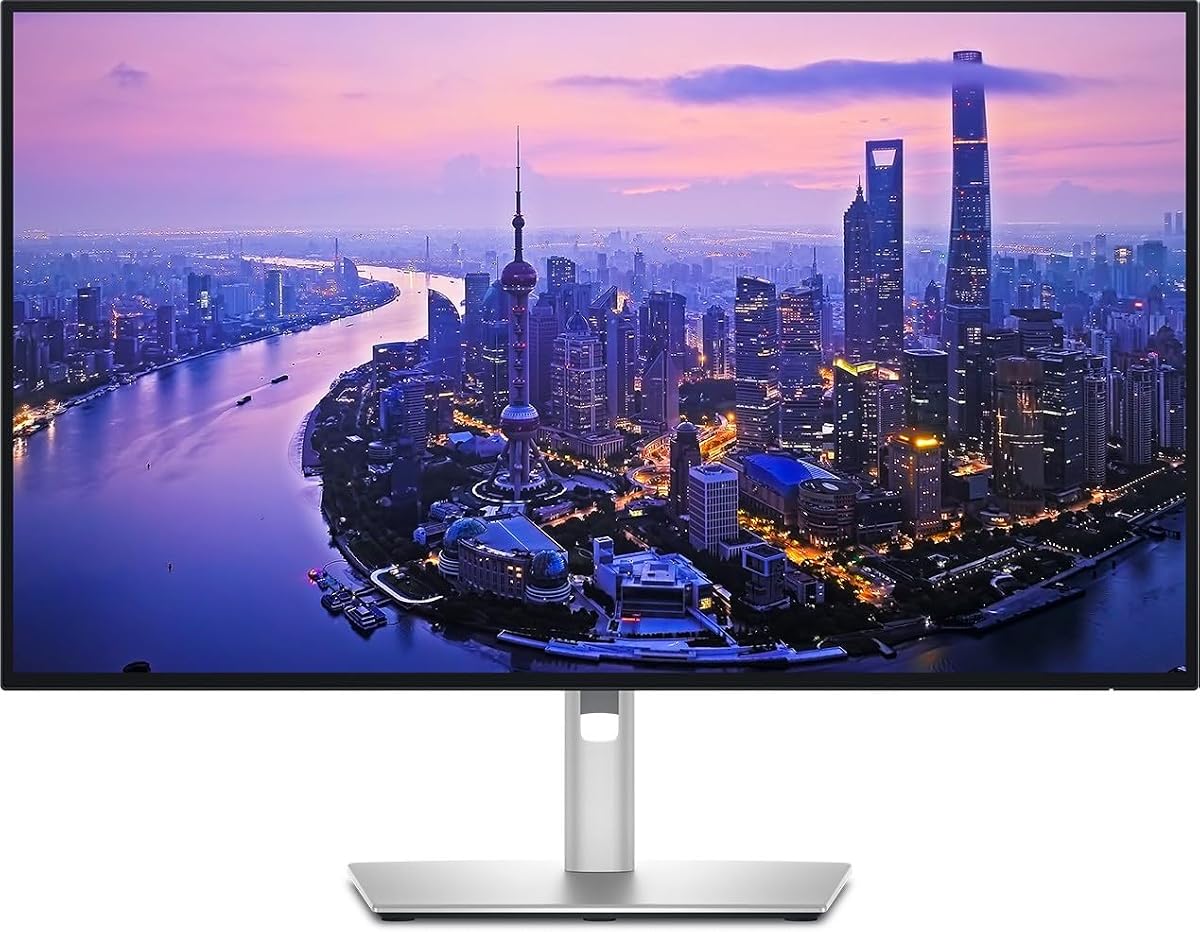
The Dell S2725QC stands out as a compelling option for users seeking a balance between performance and affordability. With a rating of 4.4 stars, it delivers a smooth 4K experience enhanced by a 120Hz refresh rate. Its IPS panel ensures vibrant colors and wide viewing angles suitable for both work and media consumption.
We may earn a commission when you buy through this link, at no additional cost to you.
Color reproduction is a key strength here, covering 99% of the sRGB spectrum for reliable visual output. The ComfortView Plus technology effectively reduces harmful blue light emissions, making it ideal for long working sessions. Additionally, the re-engineered audio system provides detailed sound output without needing external speakers.
While it lacks the full Thunderbolt 4 bandwidth found in premium models, the USB-C connectivity with 65W power delivery simplifies desk management significantly. The FreeSync Premium support ensures tear-free visuals during dynamic content viewing. These features make it a practical choice for general productivity and entertainment needs.
This monitor is best suited for professionals and students who need high-quality visuals without breaking the bank. Its ergonomic design and easy connectivity options streamline daily workflows effectively. We recommend it for anyone prioritizing screen quality and eye comfort over advanced docking capabilities.
The 4K UHD resolution combined with IPS technology provides sharp text and vivid imagery. ComfortView Plus ensures this clarity is maintained without causing eye fatigue over time.
A single USB-C cable handles video and power delivery, reducing cable clutter. This feature is particularly useful for users with limited desk space or portable workstations.
We may earn a commission when you buy through this link, at no additional cost to you.
The Dell UltraSharp U2725QE represents the pinnacle of professional monitoring with its advanced IPS Black panel technology. Rated 4.4 stars, it offers a significant improvement in contrast ratios compared to standard IPS screens. This makes deep blacks and vibrant colors pop more effectively for design and editing tasks.
We may earn a commission when you buy through this link, at no additional cost to you.
Factory calibration ensures color accuracy with a Delta E less than 1.5, which is critical for professional workflows. The Thunderbolt 4 single cable solution supports up to 140W power delivery, allowing it to charge high-performance laptops while transmitting video and data. The ambient light sensor further enhances usability by adjusting brightness automatically.
Despite the premium pricing, the inclusion of ergonomic adjustments and a rich port selection justifies the investment for serious professionals. The 120Hz refresh rate supports fluid motion during multitasking and fast-paced workflows. It is designed to minimize distractions and maximize productivity through superior hardware integration.
Ideal for creative professionals and executives who demand the highest quality visual output and connectivity. Its ability to daisy-chain other monitors adds flexibility to complex workstation setups. We consider this the top choice for those willing to invest in a high-performance display ecosystem.
Factory calibration delivers precise color reproduction right out of the box. This saves time and ensures consistency across different creative projects and client deliverables.
Thunderbolt 4 connectivity allows a single cable to handle video, data, and high wattage charging. This reduces desk clutter and simplifies connecting and disconnecting devices.
We may earn a commission when you buy through this link, at no additional cost to you.
The Dell U3226QER offers an expansive 32-inch workspace that is perfect for multitasking and detailed visual work. With a rating of 4.6 stars, it combines high-resolution visuals with practical features like a built-in KVM switch. This allows users to control two different computers with a single keyboard and mouse effortlessly.
We may earn a commission when you buy through this link, at no additional cost to you.
Its IPS Black panel delivers a 3000:1 contrast ratio, providing deeper blacks and richer shadows than conventional monitors. For Mac users, it serves as an ideal companion with tested compatibility and Display P3 color support. The refined light ash finish adds a premium look that complements any modern office environment.
While the size and price are significant considerations, the functionality it provides for enterprise users is unmatched. The fast Ethernet connection and near-borderless design keep you connected and focused. It transforms the monitor into a central hub that manages multiple devices and inputs seamlessly.
This monitor is recommended for executives and developers who need to switch between personal and work machines frequently. The ability to spread code and browsers across a crisp 4K workspace enhances efficiency. It is a powerful tool for those managing complex workflows and multiple operating systems.
The KVM switch allows seamless control of two computers without extra peripherals. This feature is essential for hybrid workers balancing personal and professional devices simultaneously.
The 32-inch size with 4K resolution provides ample space for detailed design work. Combined with IPS Black technology, the viewing experience is deep and visually engaging.
We may earn a commission when you buy through this link, at no additional cost to you.
The Dell U2725QE offers a robust 27-inch 4K display tailored for demanding creative and productivity tasks. It features a built-in Thunderbolt hub that simplifies connections and allows for efficient daisy-chaining of multiple devices. The factory-calibrated color accuracy ensures true-to-life reproduction for photography and graphic design work.
We may earn a commission when you buy through this link, at no additional cost to you.
This model emphasizes sustainability with materials and energy-efficient operations, aligning with corporate environmental goals. The versatile port selection transforms the monitor into a full connectivity hub, accommodating various peripherals and storage devices. Ergonomic adjustments allow for a personalized setup that promotes long-term comfort and health.
While the user rating is slightly lower than other models, it remains a strong contender for enterprise environments. The single-cable solution dramatically simplifies desk setup and cable management for users. It provides a reliable and stable experience for professional workflows that require consistent color and connectivity.
Best suited for organizations prioritizing sustainability and comprehensive connectivity solutions. It fits well in corporate settings where ergonomic comfort and environmental standards are key requirements. We recommend this for businesses looking for a reliable, large-scale monitor solution.
Dell's commitment to sustainable materials makes this monitor an eco-friendly choice. This aspect is increasingly important for companies aiming to reduce their carbon footprint.
The built-in Thunderbolt hub acts as a central docking point for peripherals. This eliminates the need for separate docking stations and streamlines cable management significantly.
We may earn a commission when you buy through this link, at no additional cost to you.
The LG 27UP850K-W distinguishes itself with a unique built-in webOS streaming platform, allowing for versatile media consumption. With a rating of 4.5 stars, it delivers stunning 4K visuals that support HDR 400 for dramatic dynamic range. The 95% DCI-P3 color gamut ensures rich and vibrant colors for entertainment and content creation.
We may earn a commission when you buy through this link, at no additional cost to you.
Connectivity options are extensive, including USB Type-C for power delivery up to 90W along with HDMI and DisplayPort. The built-in stereo speakers equipped with Waves MaxxAudio provide immersive sound without external devices. Features like Dynamic Action Sync enhance responsiveness for gaming and interactive content.
This monitor is particularly strong for users who want a standalone entertainment hub alongside their workstation. The Switch app allows for easy multitasking and screen splitting directly from the monitor interface. It simplifies the setup by reducing the need for separate streaming boxes or complex configurations.
Ideal for media consumers and casual gamers who need high-quality display performance. It works well in living room setups or as a secondary display for entertainment. We recommend it for those prioritizing built-in streaming capabilities and color vibrancy.
The webOS platform transforms the monitor into a smart display capable of running streaming apps. This reduces hardware clutter and centralizes media access on one device.
Built-in speakers with Waves MaxxAudio deliver clear and powerful sound output. This feature adds convenience for users who prefer not to manage external audio hardware.
We may earn a commission when you buy through this link, at no additional cost to you.
The Dell U2725QE Hub functions as a streamlined docking solution for professional environments needing reliable connectivity. It integrates a Thunderbolt hub directly into the monitor chassis to support high-speed data transfer and single-cable laptop connections. This design is aimed at reducing cable clutter and simplifying workstation logistics effectively.
We may earn a commission when you buy through this link, at no additional cost to you.
Users can enjoy the benefits of a 27-inch 4K display with the convenience of an integrated hub. The build quality reflects professional standards with a focus on durability and consistent performance. It supports daisy-chaining which is useful for extending workspace without additional power or video sources.
While it shares similarities with other models in the line, its focus on hub functionality makes it a specific choice for connectivity. It transforms the monitor into a central node for peripherals like storage devices and accessories. This approach ensures a clean and organized desk setup for daily use.
Best suited for enterprise users and professionals who prioritize cable management and reliability. It fits well in office setups where consistent performance and brand support are crucial. We recommend it for organizations looking for standard high-quality docking solutions.
The integrated hub turns the monitor into a central node for peripherals. This approach significantly reduces the number of cables needed to connect multiple devices.
Designed to optimize desk space and workflow efficiency. The clean design and integrated ports help maintain a tidy and productive environment.
We may earn a commission when you buy through this link, at no additional cost to you.
The ViewSonic VP2488-4K is a compact 24-inch option that does not compromise on professional performance. With a rating of 4.5 stars, it features Thunderbolt 4 connectivity and delivers up to 100W of power through USB-C to keep laptops charged. The screen is optimized for Mac users and aligns with ecosystem color standards.
We may earn a commission when you buy through this link, at no additional cost to you.
Color precision is highlighted by Pantone validation, ensuring reliable fidelity for professional creative outputs. The fully adjustable stand allows for tilt, swivel, rotate, and height adjustments to promote a healthier workspace. This level of adjustment is rare in compact monitors and adds significant ergonomic value.
While the 24-inch size is smaller, it is perfect for users with limited desk space who still need high resolution. The fast data transfer speeds facilitate efficient workflows with large media files. It offers a high-density pixel count that makes text and icons exceptionally sharp and legible.
Ideal for professionals with constrained office space or those needing a high-quality portable monitor. Its Mac-ready features make it a strong choice for creative teams using Apple hardware. We recommend it for users prioritizing accuracy and compact design.
The monitor is designed to align with Mac visual performance and color standards. This ensures seamless integration for users deeply invested in the Apple ecosystem.
Despite the smaller footprint, the 4K resolution offers a high pixel density. This makes it ideal for reading text and working on detailed tasks without eye strain.
We may earn a commission when you buy through this link, at no additional cost to you.
The Samsung ViewFinity S7 boasts an impressive 4.8-star rating and offers a large 32-inch workspace for professionals. Its 4K UHD resolution provides exceptional clarity that reveals greater levels of detail for intricate designs. The IPS panel ensures wide viewing angles, making it suitable for collaborative work environments.
We may earn a commission when you buy through this link, at no additional cost to you.
HDR10 support optimizes contrast to deliver accurate colors with darker blacks and brighter highlights. Eye Saver Mode reduces blue light and minimizes flickering to prevent strain during long sessions. This focus on user health and comfort makes it a reliable choice for daily office use.
While it may lack the advanced Thunderbolt connectivity of other models, its simplicity and high visual performance are compelling. The setup is straightforward with HDMI and DP ports, ensuring compatibility with various devices. It offers a clean interface that simplifies workflow management without unnecessary complexity.
Recommended for professionals seeking a large, reliable screen with high user satisfaction ratings. It fits well in environments where visual clarity and eye comfort are top priorities. We suggest it for users who value simplicity and large screen real estate over advanced docking.
Eye Saver Mode actively reduces blue light emissions and screen flickering. This technology is certified by TÜV to help prevent fatigue during extended working hours.
The large screen size facilitates better collaboration and multitasking. Multiple team members can view detailed diagrams or content clearly from various angles.
We may earn a commission when you buy through this link, at no additional cost to you.
The Dell U3225QE delivers stunning clarity on a 31.5-inch 4K LED display designed for enhanced productivity. With a rating of 4.0 stars, it brings content to life with incredible detail and vibrant colors. The integrated Thunderbolt hub offers versatile connectivity options for peripherals, streamlining the workspace significantly.
We may earn a commission when you buy through this link, at no additional cost to you.
Users can maximize their workflow with the expansive screen real estate, reducing the need for multiple monitors. The high-resolution display ensures crisp text and sharp images for comfortable viewing during extended work sessions. The slim bezel and premium finish elevate the workspace aesthetic for any professional environment.
This monitor is a strong contender for those looking to consolidate multiple displays into one powerful unit. The seamless connectivity boosts efficiency by allowing quick switching between devices and inputs. It balances visual performance with practical connectivity solutions for a comprehensive workstation setup.
Ideal for professionals who need a large canvas for complex tasks and multitasking. It fits well in corporate offices or executive desks where productivity and efficiency are key. We recommend it for users seeking a comprehensive single-display solution.
The large screen allows users to replace multiple smaller monitors with one cohesive view. This reduces hardware costs and simplifies physical setup and cabling.
The built-in hub simplifies connections for peripherals and devices directly. This reduces clutter and improves the overall efficiency of the workspace layout.
We may earn a commission when you buy through this link, at no additional cost to you.
The Samsung TU87F Series offers a unique solution for seamless dual 4K display setups with daisy chain capabilities. Rated 4.1 stars, it features two Thunderbolt 3 ports that support complex multi-monitor configurations. The VA panel delivers wide 178-degree viewing angles and deep dark blacks for a rich visual experience.
We may earn a commission when you buy through this link, at no additional cost to you.
Users can connect two separate sources to view them simultaneously using Picture-by-Picture or Picture-in-Picture features. The virtually borderless frame enhances the impression of a seamless display in a multi-screen setup. It is compatible with both PC and Mac, providing flexibility for mixed-device environments.
This monitor is particularly useful for users who need to manage two independent workstations from one screen. The 31.5-inch size provides ample room to work without needing external hardware. It supports charging and data transfer up to 90W, ensuring efficient power management across devices.
Recommended for users needing a simplified dual-UHD setup without complex wiring. It fits well in trading floors or coding environments where simultaneous monitoring is required. We suggest it for those who value multi-input capabilities and clean aesthetic integration.
Picture-by-Picture features allow viewing two independent feeds on one screen. This is highly useful for monitoring different workflows or data streams simultaneously.
Daisy chain support simplifies connecting multiple monitors with fewer cables. The virtually borderless design enhances the visual continuity between screens in a setup.
We may earn a commission when you buy through this link, at no additional cost to you.
Selecting the right monitor involves balancing technical specs with your specific workflow needs.
Thunderbolt 4 offers the fastest data transfer speeds at 40Gbps and supports higher power delivery compared to earlier versions. Ensure the monitor supports the specific version you need for your laptop to avoid bottlenecks in video and data transmission.
Check that the port handles video, data, and charging simultaneously to reduce cable clutter effectively.
IPS panels generally provide better color accuracy and viewing angles, while VA panels offer deeper blacks and higher contrast. For creative work, look for high sRGB or DCI-P3 coverage and factory calibration to ensure color fidelity.
Prioritize factory calibration certificates if you work with color-sensitive designs or professional photography.
Monitors with Thunderbolt ports can charge your laptop through the same cable used for video. Verify the wattage output (e.g., 65W, 90W, 140W) matches your laptop's power requirements to ensure it charges efficiently while in use.
Higher wattage is essential for high-performance laptops that consume more power during heavy workloads.
4K resolution on screens larger than 27 inches can make text smaller but sharper. Consider your desk space and viewing distance when choosing between 24, 27, or 32 inches to balance productivity with comfort.
Ensure your workspace accommodates the physical dimensions of the larger models before purchasing.
While many professionals prioritize clarity over speed, a 120Hz refresh rate can make scrolling and multitasking feel smoother. Lower response times reduce motion blur which is beneficial for fast-paced workflows or light gaming.
Choose higher refresh rates if you work with dynamic content or prefer fluid motion in your daily tasks.
A fully adjustable stand allows you to tilt, swivel, pivot, and adjust height to prevent neck strain. Look for VESA compatibility if you plan to use wall mounts or monitor arms for better positioning.
Ergonomic features are critical for long-term health and comfort during extended work hours.
Beyond Thunderbolt, having HDMI and USB-A ports allows you to connect legacy devices or secondary computers. Built-in USB hubs add convenience by allowing you to connect peripherals directly to the monitor.
A versatile port selection future-proofs your setup against changing device standards.
Higher-end models come with premium features like better contrast and robust hubs but cost more. Assess which features you truly need versus those that are nice to have to find the best value.
Invest more in core features like panel quality and connectivity speed over aesthetic extras.
To maximize performance, connect your laptop directly to the Thunderbolt port using the provided high-speed cable. This ensures you get the full bandwidth and power delivery capabilities the monitor is designed to offer without bottlenecks from adapters.
Clean the screen regularly with a soft, lint-free microfiber cloth to avoid scratches. Avoid using chemical cleaners directly on the panel as they can damage the coating and reduce image quality over time.
Adjust the brightness settings based on ambient lighting to reduce eye strain. Many modern monitors have ambient light sensors that do this automatically, but manual adjustments can further optimize your viewing experience.
Yes, you need a certified Thunderbolt 3 or 4 cable to achieve full speed and power delivery. Standard USB-C cables might only support video or low power. Ensure the cable length is within the supported range for optimal performance.
Most Thunderbolt monitors are compatible with Windows PCs that have Thunderbolt support. However, some color calibration features may be optimized for Mac systems. Always check the manufacturer's documentation for specific Windows compatibility details.
A KVM switch allows you to control two computers with one keyboard and mouse seamlessly. This eliminates the need to swap cables or input devices when switching between work and personal laptops.
Yes, Thunderbolt monitors typically cost more due to the advanced connectivity hardware. However, they often replace the need for a separate docking station which can offset the overall cost of your setup.
Thunderbolt supports daisy-chaining, allowing you to connect multiple displays in a chain using a single cable. Check the monitor's manual for specific daisy-chain limits and setup instructions for your model.
While 60Hz is standard for office tasks, 120Hz provides smoother scrolling and transitions which can reduce eye fatigue. It is a nice-to-have feature for those who prioritize fluid motion over static text clarity.
We have highlighted ten top-tier models ranging from budget-friendly options to premium professional hubs. The Dell UltraSharp series stands out for connectivity and color accuracy while Samsung offers strong value for large screens.
When selecting your monitor prioritize power delivery capacity and port variety to ensure your workflow remains uninterrupted. Choosing the right panel technology will also significantly impact your daily comfort and visual output quality.
Please verify current pricing and stock availability as these details change frequently online. Investing in a reliable monitor now can save money on peripherals and improve productivity for years to come.