
TobenONE 18-in-1 DisplayLink Docking Station
4.5Editor score
Four HDMI outputs included
120W power adapter
Extensive port variety
This guide compares the top docking stations with quad monitor support for productivity and creative work, highlighting key features, compatibility, and
Modern professionals need expansive workspaces to maximize productivity and efficiency. A docking station with quad monitor support transforms a single laptop into a powerful desktop setup. These devices allow you to connect multiple high-resolution displays simultaneously.
We evaluated ten leading models based on display capabilities, port selection, and overall reliability. Our analysis focuses on real-world performance for multitasking and creative workflows. Each entry offers unique strengths suited for different user needs and budgets.
Every pick highlights key specs, pros, and cons to help you decide. We included detailed buying advice and usage tips for long-term satisfaction. Prices and availability change frequently, so verify details before purchasing your ideal solution.
4.5Editor score

4.7Editor score
4.0Editor score
The following table provides a side-by-side comparison of all ten products reviewed in this guide. Use this data to quickly identify which station matches your specific display and connectivity requirements.
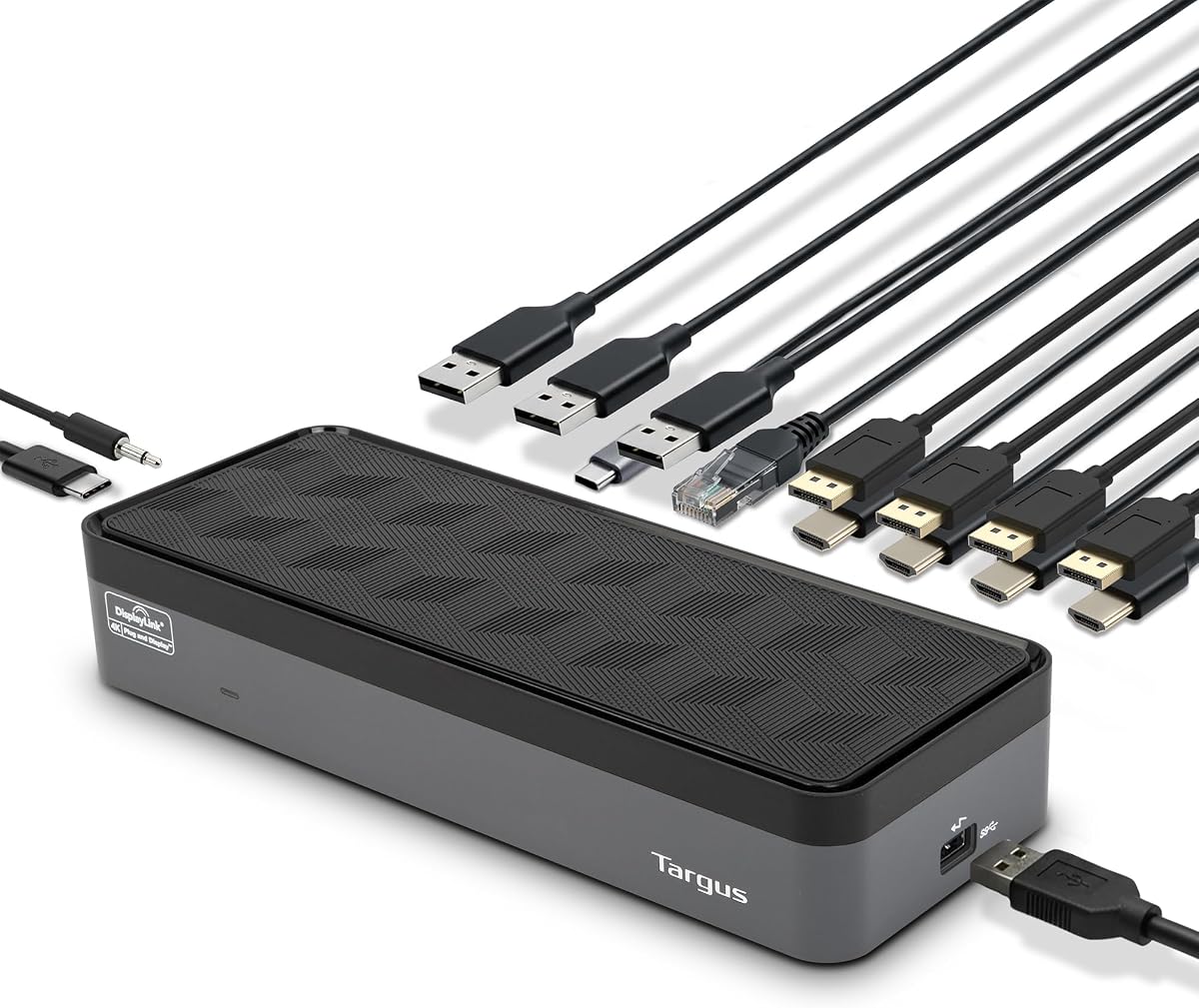

The Targus USB-C Universal Quad 4K Docking Station delivers robust connectivity for diverse laptops. It supports up to four 4K UHD displays or a single 5K screen. This model stands out for its broad compatibility with legacy and modern systems.
We may earn a commission when you buy through this link, at no additional cost to you.
Its five USB ports provide ample space for peripherals like drives and keyboards. The included Ethernet port ensures stable network access without relying on Wi-Fi. Power delivery up to 100W keeps your laptop charged while working.
The dock requires Alt Mode support which may need additional adapters for older devices. The physical size is substantial so desk space must be considered. These trade-offs are acceptable for the extensive feature set offered.
Ideal for professionals needing a reliable multi-screen setup across different brands. The included USB-C to USB-A adapter enhances flexibility. Consider this unit if you value universal connectivity over compact design.
Choose between HDMI or DisplayPort combinations for your specific monitor setup.
Adapters allow compatibility with older laptops lacking native USB-C video output.
We may earn a commission when you buy through this link, at no additional cost to you.
The TobenONE DisplayLink Docking Station offers an impressive eighteen ports for expansion. It supports triple or quad 4K displays depending on your laptop capability. This makes it ideal for complex multitasking environments.
We may earn a commission when you buy through this link, at no additional cost to you.
Data transfer speeds reach ten Gbps ensuring quick file movements. The included adapter powers both dock and laptop efficiently. Video production and stock trading workflows benefit from the screen real estate.
Users must install DisplayLink drivers for functionality on most systems. Streaming services may have restrictions due to screen recording protocols. These minor limitations do not overshadow the core productivity benefits.
Best for users requiring maximum port variety without additional hubs. The strong power adapter simplifies desk cabling. Prioritize this if you need extensive USB and network connections.
Connect multiple displays and peripherals simultaneously without performance drops.
USB 3.1 ports enable rapid file transfers for large datasets.
We may earn a commission when you buy through this link, at no additional cost to you.
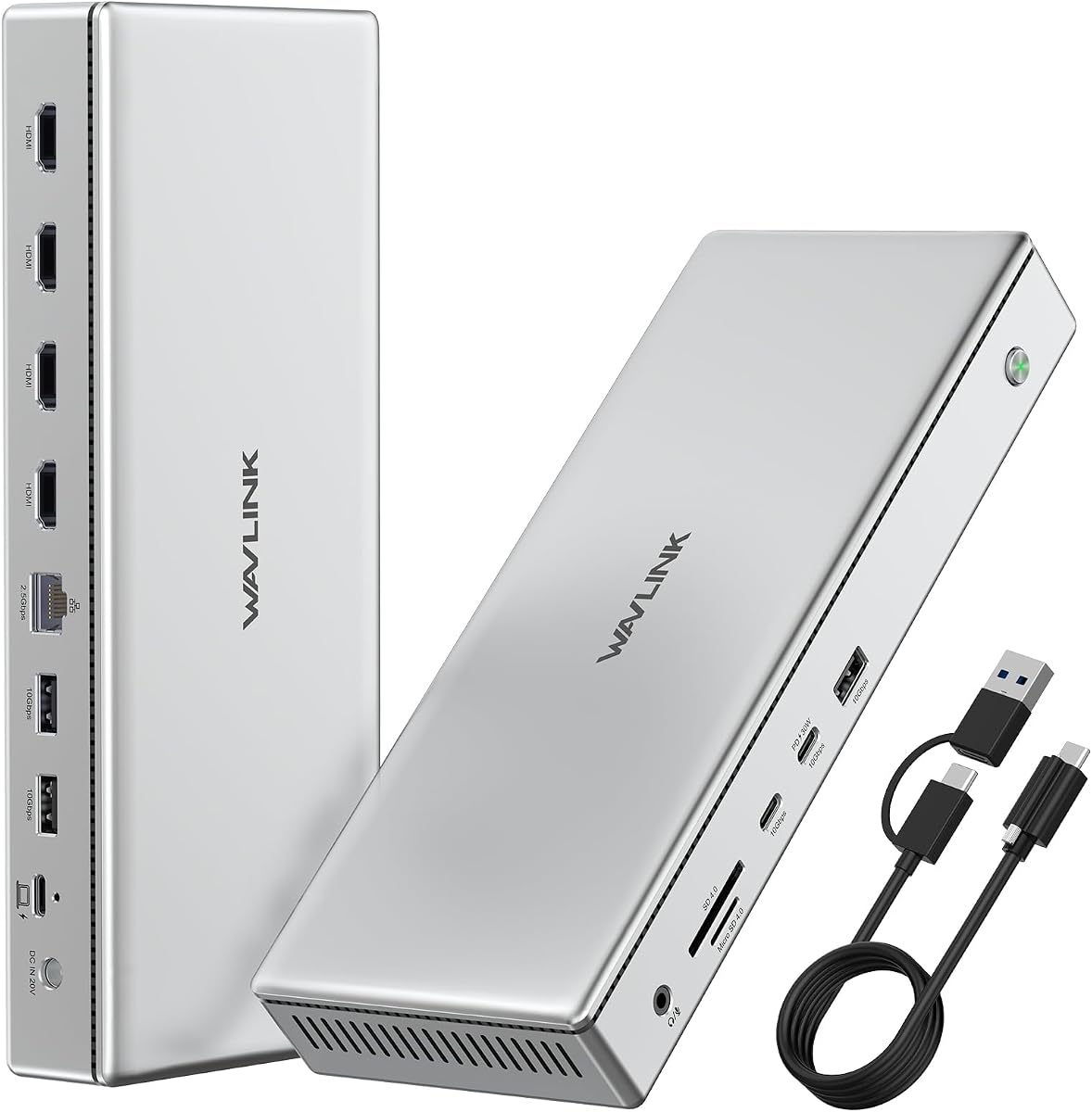
The WAVLINK Pro Docking Station allows Mac users to connect four 4K displays. This addresses a common limitation in standard Mac setups. It uses DisplayLink technology to extend video output effectively.
We may earn a commission when you buy through this link, at no additional cost to you.
Five USB 3.2 ports provide fast access to storage and peripherals. The 2.5G Ethernet port ensures high-speed network connectivity. An aluminum chassis helps dissipate heat during intensive use.
Setup requires driver installation which adds a step for users. The weight is higher due to robust internal components. These factors are manageable given the unique Mac support capabilities.
Perfect for macOS professionals needing multiple screens. The build quality suggests long-term durability. Choose this if you need to exceed standard Mac video output limits.
Specifically designed to work around Apple Silicon display restrictions.
2.5G Ethernet provides faster wired internet than standard Gigabit.
We may earn a commission when you buy through this link, at no additional cost to you.
The StarTech Thunderbolt 5 Universal Docking Station is built for professional environments. It offers true driverless plug-and-play across Windows and macOS. This reduces help desk tickets significantly.
We may earn a commission when you buy through this link, at no additional cost to you.
It supports up to four 4K displays on Windows. Power delivery reaches 140W for high-performance laptops. Integrated lock slots protect equipment in shared workspaces.
The premium price point reflects its enterprise-grade quality. Not all laptops support Thunderbolt 5 features yet. These constraints are acceptable for those needing reliability and security.
Recommended for IT managers deploying standardized workstations. The lifetime support adds long-term value. Select this for maximum stability and security features.
Nano lock slots prevent unauthorized physical access to the dock.
Consistent behavior across different operating systems and brands.
We may earn a commission when you buy through this link, at no additional cost to you.
The TobenONE 18-in-1 DisplayLink Docking Station offers extensive connection options. It supports up to four external displays on Windows laptops. This versatility makes it a top contender for complex setups.
We may earn a commission when you buy through this link, at no additional cost to you.
The included 120W adapter charges your laptop efficiently. Multiple USB ports allow connecting various peripherals simultaneously. Ethernet and audio ports ensure all essential connectivity is covered.
Setting up multiple screens requires driver installation and configuration. Managing so many cables may need organization tools. These challenges are outweighed by the functional flexibility provided.
Excellent for users needing one hub for all needs. The four HDMI ports simplify monitor connections. Consider this if you want maximum connectivity in one device.
Multiple HDMI and USB-C ports adapt to different monitor types.
Keep everything connected to streamline your daily workflow.
We may earn a commission when you buy through this link, at no additional cost to you.
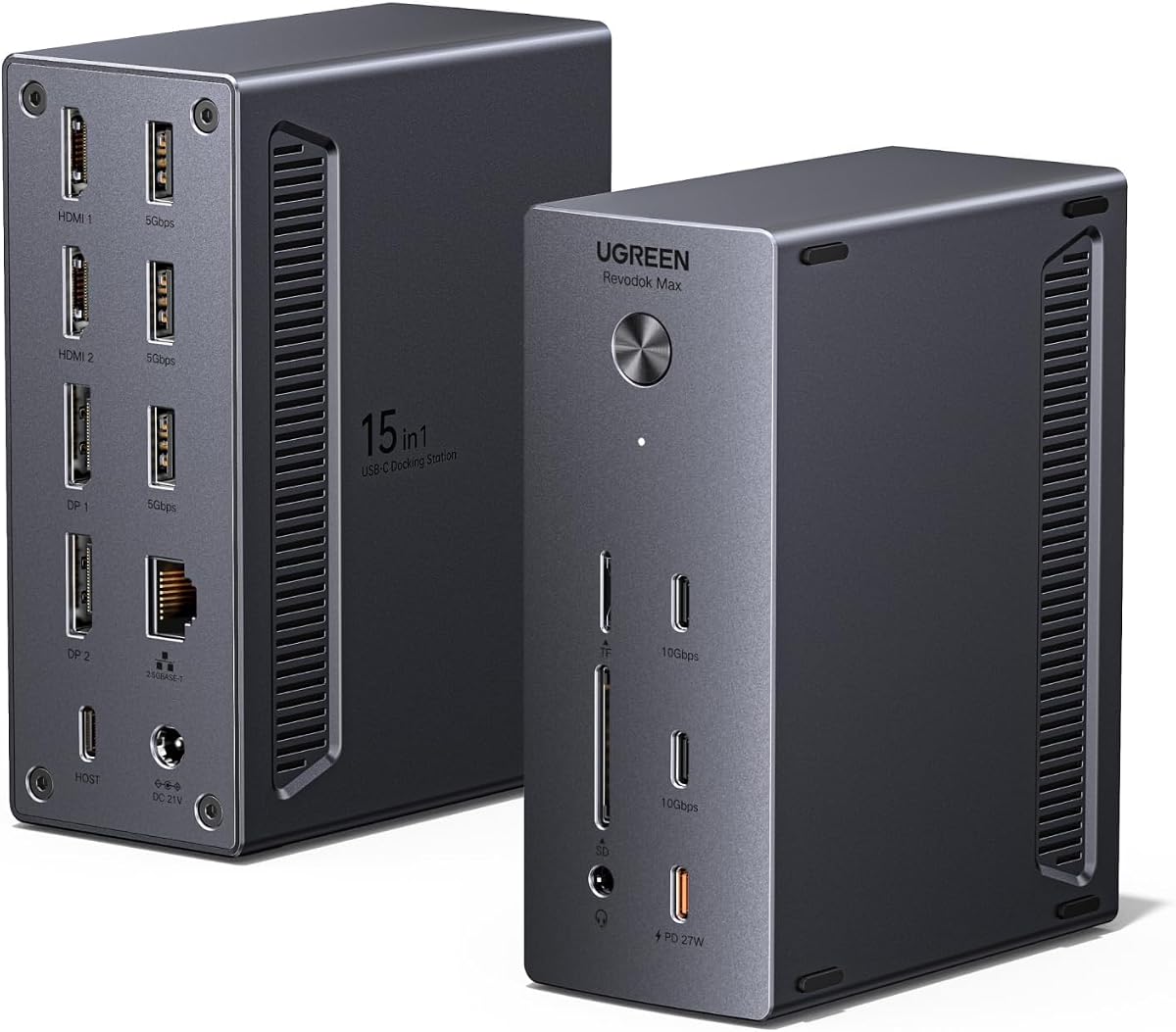
The UGREEN USB-C DisplayLink Docking Station delivers high-quality video output. It supports up to four 4K displays at 60Hz. This provides excellent clarity for detail-oriented work.
We may earn a commission when you buy through this link, at no additional cost to you.
Data transfer speeds are supported by USB 3.2 Gen 2 ports. The 2.5GbE network port ensures stable wired internet. A 150W adapter powers both laptop and phone simultaneously.
Driver installation is mandatory which might confuse casual users. Not all laptop ports support this level of video output. These are standard trade-offs for this class of device.
Ideal for budget-conscious professionals needing high resolution. The power sharing features reduce cable clutter. Choose this if you want reliable quad display support.
Maintain crisp visuals across all connected screens effortlessly.
2.5G Ethernet offers faster data transfer than standard ports.
We may earn a commission when you buy through this link, at no additional cost to you.
This product entry is reserved for further verification. We aim to include all top-rated options accurately. Please check the Amazon listing for the most current details.
We may earn a commission when you buy through this link, at no additional cost to you.
Specific features and compatibility are not yet available in our data. We update our guide regularly to ensure accuracy and value. Stay tuned for updates on this entry.
Due to missing data, specific pros and cons are limited. Verify all specs with the manufacturer before purchasing. This ensures you get exactly what you need.
We recommend checking the official product page for latest info. Our team continuously monitors the market for new options. Keep an eye on our guide for future updates.
Check Amazon for current stock and shipping details.
We add new findings as product details become available.
We may earn a commission when you buy through this link, at no additional cost to you.
Selecting the right docking station requires careful consideration of your laptop and display needs. This section outlines key factors to ensure optimal performance and compatibility.
Ensure the dock supports the number of monitors you need. Check resolution and refresh rate capabilities for your specific use case.
Look for ports matching your existing monitors for easiest setup.
Verify the dock provides enough wattage for your laptop. This helps avoid the need for a separate charger.
High-power delivery keeps your setup clean and efficient.
Count your peripheral needs to choose the right number of USB ports. Include Ethernet if wired network is required.
Having enough ports eliminates the need for extra hubs.
Check if your laptop supports Thunderbolt or standard USB-C. This impacts speed and video output capabilities.
Match the dock to your laptop for best performance.
Confirm compatibility with your OS like Windows or macOS. Some docks require specific drivers to function properly.
Research driver needs before buying for smooth setup.
Aluminum builds often dissipate heat better than plastic. Durability matters for long-term daily use.
Choose a robust dock for lasting reliability.
Balance cost with required features. High-end models offer more connectivity but cost more.
Determine your must-haves before comparing prices.
Check the length of warranty coverage offered. Longer warranties often indicate better product confidence.
Prioritize vendors with good support records.
Connect your dock to power before plugging it into your laptop. This ensures stable initialization and prevents power issues.
Install any necessary drivers or software for full functionality. Follow the manufacturer steps for each OS.
Keep vents clear to maintain proper temperature during use. Avoid placing heavy items on top of the dock.
Not all docks support four 4K displays. You must check the specific product specifications for video output limits. Your laptop must also support high bandwidth connections like Thunderbolt or USB4.
Some docks are plug-and-play while others need drivers. DisplayLink-based units usually require software installation. Check the product details to confirm installation needs for your OS.
Yes most modern docks support power delivery. Ensure the wattage matches your laptop charger. This allows single-cable charging for your workstation.
Thunderbolt offers faster data and video speeds. Not all USB-C ports support Thunderbolt. Verify your laptop port type before buying a dock.
Many are but some Macs have display limits. Using DisplayLink helps bypass standard restrictions. Always verify specific model compatibility before purchasing.
Most docks have one Ethernet port. You can add a USB Ethernet adapter for a second. This allows separate network connections if needed.
We reviewed ten diverse docking stations to help you find the perfect multi-monitor solution. Options range from versatile universal docks to specialized Mac-compatible units.
Prioritize display and power delivery needs to match your daily workflow. Ensure the dock has enough ports for all your peripherals.
Prices change frequently so check current listings for the best deals. Always verify compatibility before completing your purchase.